

When Windows throws an error about Dinput8.dll or Xinput1_4.dll being blocked, missing, or failing to load, it usually happens at the worst possible time—right when you are about to launch a game or critical application. These two files are part of Microsoft’s DirectX ecosystem and are responsible for handling input devices such as keyboards, mice, and controllers. If they are blocked or corrupted, programs that depend on them may crash, refuse to start, or display frustrating pop-up errors. Fortunately, most of these problems have clear and reliable solutions.
TLDR: If Dinput8.dll or Xinput1_4.dll is blocked from loading, first check your antivirus quarantine and Windows security settings. Run System File Checker (SFC) and reinstall DirectX to restore clean system files. Avoid downloading DLLs from random websites; instead, use official Microsoft tools and updates. Most issues can be fixed in under 30 minutes with the right steps.
Understanding Dinput8.dll and Xinput1_4.dll
Dinput8.dll is part of the DirectInput API within DirectX, responsible for processing input from keyboards, mice, joysticks, and other controllers. Xinput1_4.dll, on the other hand, is tied specifically to Xbox controllers and modern gamepads. It allows applications to communicate properly with hardware.
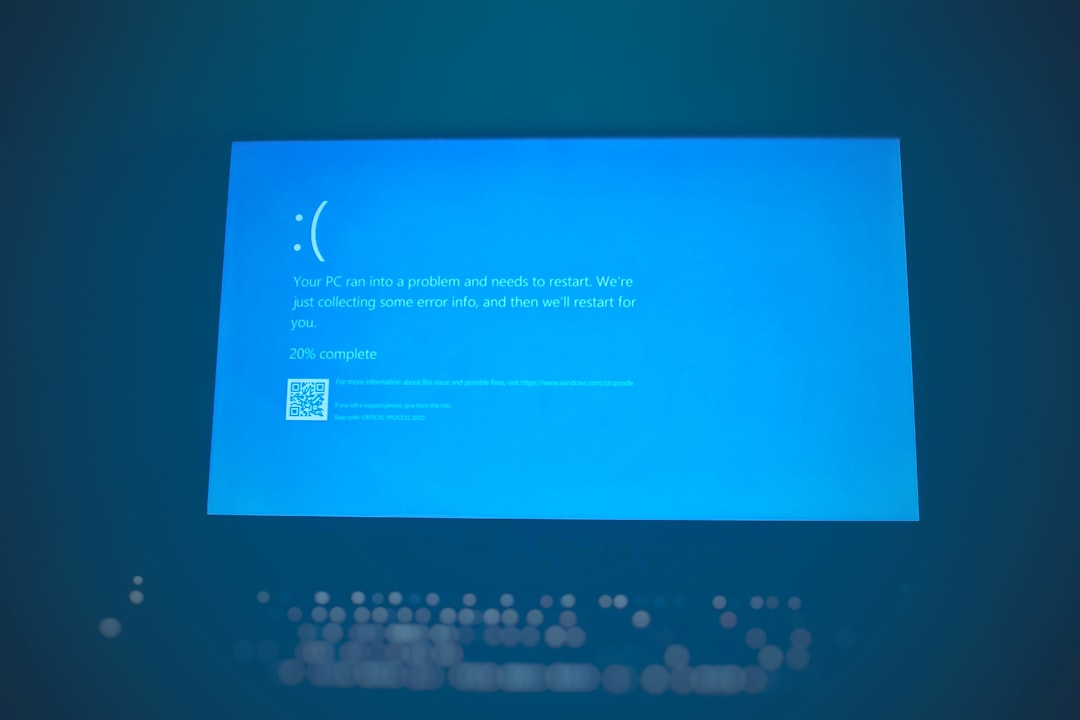
When one of these files is “blocked,” it usually means one of the following:
- Windows Security or antivirus software quarantined the file.
- The DLL was replaced or modified by third-party software.
- A corrupted DirectX installation occurred.
- Permissions restrict the application from accessing the file.
- System files have been damaged due to malware or improper shutdown.
Understanding the cause helps you choose the right fix instead of randomly replacing system files—which can make the problem worse.
Common Error Messages
You may encounter messages such as:
- “The code execution cannot proceed because Xinput1_4.dll was not found.”
- “Dinput8.dll is either not designed to run on Windows or it contains an error.”
- “Blocked loading of file Dinput8.dll.”
- “Xinput1_4.dll is missing from your computer.”
These errors don’t necessarily mean the file is permanently gone. Often, the file is present but restricted or corrupted.
Step 1: Check Windows Security and Antivirus Quarantine
Security software sometimes flags DLL files as suspicious, especially if they were modified by game mods or third-party patches.
How to check Windows Security:
- Open Windows Security.
- Click Virus & threat protection.
- Select Protection history.
- Look for entries mentioning Dinput8.dll or Xinput1_4.dll.
If the file was quarantined and you trust the source (such as an official game installation), you can restore it. However, always be cautious—malicious software often disguises itself as legitimate DLL files.
Step 2: Run System File Checker (SFC)
Windows includes built-in tools to repair corrupted system files.
To run SFC:
- Press Win + X and choose Terminal (Admin) or Command Prompt (Admin).
- Type:
sfc /scannow - Press Enter.
This process may take several minutes. SFC scans protected system files and replaces corrupted versions.
If SFC reports errors it cannot fix, run:
DISM /Online /Cleanup-Image /RestoreHealth
Then run SFC again. Together, these tools solve many DLL blockage problems.
Step 3: Reinstall or Repair DirectX
Both Dinput8.dll and Xinput1_4.dll are part of DirectX. A corrupted or incomplete installation can cause loading failures.
To reinstall DirectX:
- Download the DirectX End-User Runtime Web Installer from Microsoft.
- Run the installer and follow on-screen instructions.
- Restart your computer afterward.
Even if DirectX is already installed, reinstalling ensures all core components are intact.
Step 4: Reinstall the Affected Application or Game
Sometimes the issue lies within the program folder rather than Windows itself. Applications may ship with their own version of DirectX libraries.
Try this approach:
- Uninstall the problematic software completely.
- Restart your computer.
- Reinstall it from the official source.
This is especially effective if you installed game mods that replaced Dinput8.dll.
Step 5: Check File Permissions
Windows may block DLL files if permissions are misconfigured.
- Navigate to
C:\Windows\System32(orSysWOW64for 32-bit). - Locate the DLL file.
- Right-click and select Properties.
- Under the Security tab, verify that System and Administrator have full control.
If permissions are incorrect, adjust them carefully. Avoid deleting system files manually.
Step 6: Avoid Downloading Random DLL Files
It’s tempting to search online and download a standalone DLL file. This is risky for several reasons:
- Files can contain malware.
- They may not match your Windows version.
- They can introduce further instability.
Always restore files through official Microsoft channels or trusted installation media.
Useful Tools Comparison
Below is a comparison of tools commonly used to troubleshoot blocked or missing DirectX DLL files:
| Tool | Purpose | Ease of Use | Best For |
|---|---|---|---|
| SFC | Repairs corrupted system files | Easy | Basic system file corruption |
| DISM | Repairs Windows system image | Moderate | Deeper system corruption |
| DirectX Installer | Restores DirectX components | Easy | Missing DirectX DLLs |
| Dependency Walker | Analyzes DLL dependencies | Advanced | Developer-level troubleshooting |
Step 7: Scan for Malware
Malware can disguise itself as system DLL files or alter legitimate ones. If errors persist, run a full system scan using Windows Defender or a reputable antivirus program.
Perform both:
- Quick Scan
- Full Scan
If malware is detected, remove it and rerun SFC afterward to repair damage.
Step 8: Update Windows
Microsoft regularly releases updates that fix bugs in DirectX and system libraries.
To check for updates:
- Open Settings.
- Go to Windows Update.
- Click Check for updates.
Installing pending updates can automatically restore missing or blocked components.
When the Problem Is Mod-Related
Some PC game mods deliberately replace Dinput8.dll to hook custom functionality into games. In these cases:
- Ensure the mod matches your game version.
- Temporarily remove the mod to test functionality.
- Whitelist the mod in antivirus if safe.
If disabling mods fixes the issue, the mod file may be incompatible or outdated.
Advanced Troubleshooting
If none of the above works, consider:
- Creating a new Windows user account to test permissions.
- Performing a system restore to a previous point.
- Using an in-place Windows repair installation.
These solutions are more drastic but can resolve deep configuration issues.
Preventing Future DLL Loading Issues
To reduce the chances of encountering this error again:
- Keep Windows updated.
- Avoid unofficial DLL downloads.
- Use reliable antivirus software.
- Back up your system regularly.
- Install games and software from trusted sources only.
Practicing good digital hygiene significantly lowers the risk of system file corruption or blockage.
Final Thoughts
Blocked loading of Dinput8.dll or Xinput1_4.dll may sound technical and intimidating, but in most cases, the fix is straightforward. Whether the problem stems from antivirus interference, corrupted system files, outdated DirectX components, or rogue mods, methodical troubleshooting will usually restore functionality quickly.
The key takeaway is simple: don’t panic and don’t download random DLL files. Instead, rely on Windows’ built-in repair tools, official Microsoft installers, and proper security checks. With the steps outlined above, you can safely restore your system and get back to gaming or working without persistent DLL errors disrupting your experience.

