
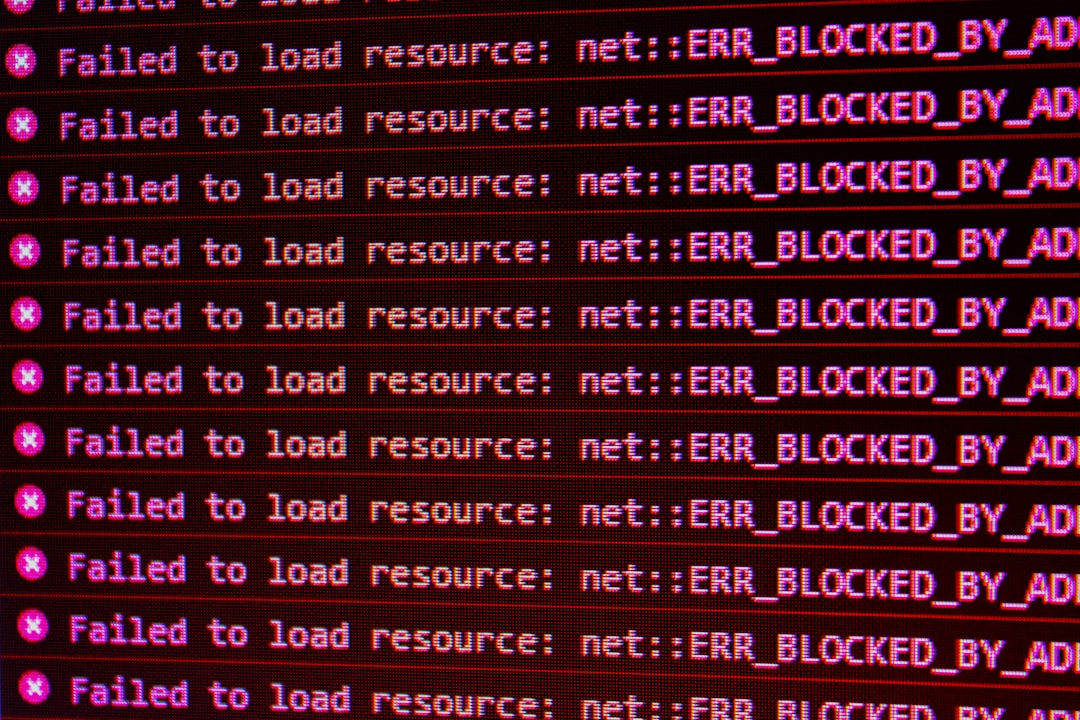
Immich is a powerful self-hosted photo and video management platform, but like any system that depends on storage, databases, background jobs, networking, and browser rendering, it can sometimes fail to display images properly. If Immich is showing an error when loading images, the cause is usually not the image viewer itself, but a problem somewhere in the chain that connects the web interface to the original file, thumbnail, metadata, or storage backend.
TLDR: Immich image loading errors are commonly caused by missing files, storage permission problems, failed thumbnail generation, broken database references, reverse proxy misconfiguration, or insufficient server resources. The best first step is to check the Immich logs, confirm that your upload library is mounted correctly, and verify that background workers are running. In many cases, regenerating thumbnails, fixing file permissions, or correcting Docker volume paths resolves the issue.
Understanding How Immich Loads Images
To understand why Immich may show an error when loading images, it helps to know what happens behind the scenes. When you open a photo in Immich, the application does not simply “open a file” in the way a desktop image viewer might. Instead, Immich relies on multiple services and stored records.
Typically, Immich stores information about each asset in its database, keeps the original file in an upload or library directory, generates thumbnails and preview images in the background, and serves those images through the web interface or mobile app. If any part of that process fails, the user may see a broken image, a loading spinner, an HTTP error, or a message indicating that the image could not be loaded.
This is why the same Immich instance might show some photos correctly while others fail. One image may have a valid thumbnail and accessible original file, while another may have a missing preview, corrupted metadata, or a file path that no longer exists.
1. Missing or Moved Image Files
One of the most common reasons Immich shows an error when loading images is that the original file is no longer where Immich expects it to be. This often happens after changing Docker volume paths, moving storage to a new disk, restoring from backup, or manually reorganizing files outside Immich.
Immich keeps database records that point to stored assets. If the database says a photo exists at a certain path but the file has been deleted, renamed, or moved, Immich cannot load it. The web interface may still show an item in the timeline because metadata remains in the database, but the actual image cannot be retrieved.
Common signs include:
- Images appear in the timeline but fail when opened.
- Thumbnails are visible, but the full-resolution image does not load.
- Errors appear only for older uploads or files from a previous storage location.
- Logs mention missing files, failed reads, or file system paths that do not exist.
If you recently migrated Immich, compare your current Docker volume mappings with the original setup. The container must see the image files at the path Immich expects. Even a small difference in mounted paths can cause loading failures.
2. Incorrect File or Directory Permissions
Permissions problems are another frequent cause. Immich may be able to list images in the database but fail to read the actual files from disk. This is especially common when storage is mounted from a NAS, external drive, network share, or another Linux host.
Immich services must have permission to read from and write to the relevant directories. If the container user cannot access the upload directory, thumbnail directory, or encoded video directory, image loading and preview generation may fail.
Check permissions carefully if:
- You changed the owner of the upload folder.
- You copied files from another system as root.
- You use NFS, SMB, or a mounted network share.
- You recently changed Docker, Unraid, TrueNAS, Synology, or Proxmox settings.
A responsible approach is to inspect ownership and permissions rather than applying broad permissions blindly. While setting very permissive access may appear to fix the issue temporarily, it can weaken the security of your server. Instead, confirm which user or group your Immich containers run as and grant only the access needed.
3. Failed Thumbnail or Preview Generation
Immich depends heavily on background jobs to generate thumbnails, previews, metadata, and other derived files. If these jobs fail or stop running, the original upload may exist, but the interface may not have a valid preview to display.
This can create confusing symptoms. For example, a newly uploaded photo may appear as a gray box, a broken image icon, or an item that never finishes loading. Older images may still work because their thumbnails were generated successfully before the issue began.
Possible causes of failed thumbnail generation include:
- The Immich microservices or machine learning container is not running.
- The server is out of memory or CPU resources.
- The image format is unsupported or partially corrupted.
- The thumbnail directory is not writable.
- Background job queues are stalled or repeatedly failing.
In the Immich administration area, review background jobs if available. You may need to rerun thumbnail generation or metadata extraction. Also check the container logs for repeated errors related to image processing libraries, file access, or memory allocation.
4. Docker Volume Mapping Problems
Because Immich is commonly deployed with Docker Compose, incorrect volume mapping is a major source of image loading errors. A container may start successfully even when a path is mapped incorrectly, but the application will fail later when it tries to access images.
For example, your Docker Compose file may map /mnt/photos on the host to /usr/src/app/upload in the container. If the host path changes, or if Docker creates an empty directory because the original path is missing, Immich may appear to run normally while pointing to the wrong storage location.
Review these items:
- Confirm the host path exists and contains your Immich files.
- Confirm the container path matches the expected Immich upload location.
- Check for accidental empty folders created by Docker.
- Verify that all Immich services use consistent volume definitions.
- Make sure environment variables match your deployment configuration.
This is particularly important after moving from one server to another. A backup of the database without a correct backup of the upload directory will not be enough. Immich needs both the database records and the associated files.
5. Database and File System Mismatch
Immich relies on PostgreSQL to track assets, albums, users, metadata, and file references. If the database and file system get out of sync, image loading problems can occur. This may happen after an incomplete restore, manual deletion of files, failed migration, or accidental rollback of either the database or storage directory.
A database mismatch can produce situations where Immich “remembers” an image, but the file is not present. The reverse can also happen: files exist on disk, but Immich does not show them because there are no corresponding database records.
This is why backups should be handled carefully. A reliable Immich backup strategy should include the PostgreSQL database, the upload library, profile data, thumbnails if desired, and relevant configuration files. Restoring only part of the system can lead to broken image references.
6. Reverse Proxy or Network Configuration Errors
If you access Immich through a reverse proxy such as Nginx, Traefik, Caddy, Cloudflare Tunnel, or another gateway, image loading errors may be caused by network configuration rather than Immich itself. The login page and timeline may load, but large images, thumbnails, or API requests may fail.
Reverse proxy issues may involve:
- Request body size limits that block large uploads or image responses.
- Timeout settings that are too short for slow storage or large files.
- Incorrect WebSocket or header forwarding configuration.
- HTTPS and HTTP mismatch problems.
- Authentication layers interfering with Immich API requests.
If images load correctly on the local network but fail through your domain name, the reverse proxy is a strong suspect. Check browser developer tools for HTTP status codes such as 403, 404, 413, 502, or 504. These codes can tell you whether the request is being blocked, not found, too large, or timing out.
7. Insufficient Server Resources
Immich can be resource intensive, especially during large imports, thumbnail generation, video transcoding, face recognition, and machine learning tasks. If the server does not have enough memory, CPU capacity, or disk performance, image loading may become slow or unreliable.
Resource pressure can cause containers to restart, background jobs to fail, database queries to time out, or image processing tasks to be killed. On smaller systems such as low-end mini PCs, older NAS devices, or Raspberry Pi deployments, this becomes more noticeable with large libraries.
Watch for these indicators:
- Containers restart unexpectedly.
- The server becomes unresponsive during uploads.
- Logs show out-of-memory errors.
- Image loading fails during heavy background processing.
- Disk usage is near full capacity.
Disk space is especially important. Even if original photos are stored successfully, Immich needs additional space for thumbnails, encoded videos, database growth, and temporary processing files. A nearly full disk can cause unpredictable behavior.
8. Unsupported, Corrupted, or Unusual Image Files
Not every image file is simple to process. Some images may use unusual codecs, damaged headers, uncommon color profiles, or formats that are only partially supported. HEIC, RAW, very large panoramas, edited exports, and files from older devices can sometimes create processing issues.
If only a few specific images fail while the rest of the library works normally, inspect those files directly. Try opening them with a trusted desktop image viewer. If the files are corrupted or nonstandard, Immich may fail to generate previews even though the file extension looks normal.
Converting problematic images to a widely supported format such as JPEG or PNG can help, but keep the original files if they are important. For professional photo libraries, RAW files may require additional consideration because preview behavior can vary depending on the embedded preview and processing support.
9. Browser Cache or Client-Side Problems
Sometimes the issue is not on the server. A browser cache problem, outdated mobile app, blocked script, privacy extension, or stale session can prevent images from loading correctly. This is less common than storage or backend problems, but it is still worth checking.
Try loading Immich in a private browsing window, clearing site data, disabling aggressive browser extensions, or testing from another browser. Also compare the web interface with the mobile app. If images fail everywhere, the problem is likely server-side. If they fail only on one device, the client environment may be responsible.
10. Version Mismatch After an Update
Immich is actively developed, and updates can include database migrations, service changes, and configuration adjustments. Running mismatched container versions can cause unexpected errors. For example, the server, microservices, machine learning service, and web components should be compatible with each other.
If image loading problems started immediately after an update, review the release notes and confirm that all containers were updated together. Also check whether the update required changes to environment variables, Compose files, or storage configuration. Avoid mixing old and new service images unless the documentation explicitly allows it.
How to Diagnose the Problem Methodically
A careful diagnosis is more effective than guessing. Start with the most direct evidence: logs, file paths, and HTTP errors.
- Check Immich logs: Look for file not found errors, permission denied messages, failed jobs, or database errors.
- Verify storage mounts: Confirm that the upload directory is visible inside the Immich containers.
- Inspect permissions: Make sure Immich can read originals and write thumbnails.
- Review background jobs: Check whether thumbnail and metadata jobs are failing or stuck.
- Test local access: Compare direct local access with reverse proxy access.
- Check system resources: Review memory, CPU, disk space, and container restarts.
- Identify the pattern: Determine whether all images fail, only new uploads fail, or only certain file types fail.
The pattern is often the key. If all images fail, suspect storage mounts, permissions, reverse proxy configuration, or a major service outage. If only new uploads fail, suspect background jobs or thumbnail generation. If only old images fail, suspect migration, missing files, or database and file system mismatch.
Final Thoughts
When Immich shows an error while loading images, the underlying cause is usually practical and traceable. The most common issues involve missing files, incorrect permissions, broken Docker volume mappings, failed thumbnail generation, reverse proxy limits, or insufficient server resources. Although the error may appear in the user interface, the root problem often lies in storage, processing, or configuration.
The safest approach is to investigate systematically and avoid destructive fixes. Do not delete database records, wipe thumbnails, or change permissions broadly without understanding the impact. Review logs, confirm mounts, check background jobs, and verify that your database and files are consistent. With careful troubleshooting, most Immich image loading errors can be resolved without losing photos or rebuilding the entire library.

