
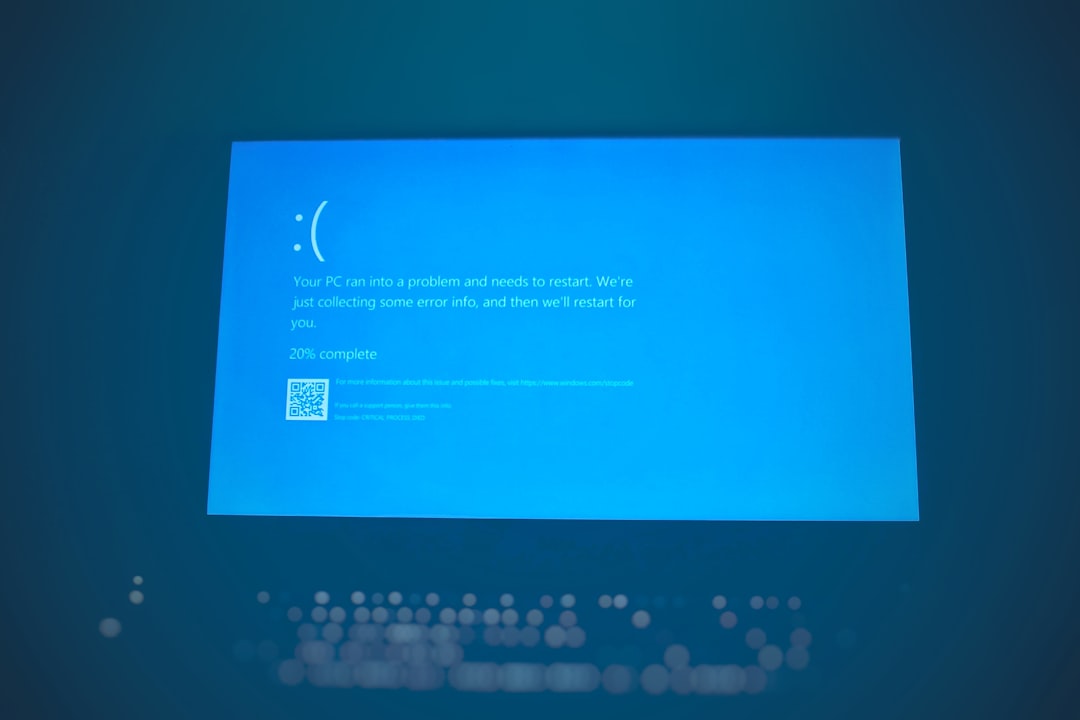
Few things are more annoying than seeing a big red error message when you are ready to enjoy your favorite Java-based app or game. One common troublemaker is the Rendering Overlay Error java.lang.RuntimeException. It looks scary. It sounds complicated. But don’t worry. You can fix it. And you don’t need to be a coding wizard to do it.
TLDR: This error usually happens because of graphics driver problems, corrupted game files, outdated Java, or mod conflicts. Start by updating your graphics drivers and Java. Then check your game files and disable mods. In most cases, one of these simple steps fixes everything.
What Is the Rendering Overlay Error?
Let’s break down the name.
- Rendering means drawing graphics on your screen.
- Overlay is an extra layer shown on top of the main display.
- java.lang.RuntimeException means something went wrong while the program was running.
Put it together. The app tried to draw something on your screen. It failed. And Java threw a runtime exception.
This error is common in:
- Minecraft
- Modded Java games
- Custom launchers
- Java-based tools with graphic overlays
The good news? Most causes are simple. Let’s fix them step by step.
Step 1: Restart Everything (Yes, Really)
This sounds basic. But it works more often than you think.
- Close the game completely.
- Close the launcher.
- Restart your computer.
- Launch the game again.
Why does this work?
Because sometimes the graphics system gets stuck. A restart clears memory. It resets your GPU state. It gives Java a fresh start.
If the error is gone, great. If not, move on.
Step 2: Update Your Graphics Drivers
This is the most common cause of rendering overlay errors.
If your graphics driver is outdated, corrupted, or incompatible, it can’t properly render overlays. Java gets confused. Boom. RuntimeException.
How to Update Drivers (Windows)
- Press Windows + X.
- Click Device Manager.
- Expand Display adapters.
- Right-click your graphics card.
- Select Update driver.
Better option: go to the official website:
- NVIDIA – nvidia.com
- AMD – amd.com
- Intel – intel.com
Download the latest version manually. Install it. Restart your PC.
Test the game again.
Step 3: Update Java
If your Java version is outdated, things can break. Especially with newer mods or overlays.
Check your current Java version:
- Press Windows + R.
- Type cmd.
- Type: java -version
If your version is old, update it.
Recommended Java Versions
- Java 8 (for older Minecraft versions)
- Java 17 (for newer versions)
Download from the official site or use your game launcher’s bundled Java.
After installing, restart your system.
Step 4: Check for Mod Conflicts
If you are using mods, listen carefully.
Mods are awesome. But they fight each other sometimes.
The rendering overlay error is very common in modded environments. Especially if:
- A mod is outdated
- Two mods modify the same overlay
- A shader pack conflicts with a UI mod
How to Test for Mod Problems
- Go to your mods folder.
- Move all mods to a temporary folder.
- Start the game without mods.
If the error disappears, the problem is a mod.
Now add them back one by one. Test each time. Slow? Yes. Effective? Absolutely.
Step 5: Repair or Reinstall the Game
Sometimes files get corrupted. It happens during crashes or bad updates.
Corrupted rendering files can trigger runtime exceptions.
How to Repair
- Use the launcher’s Repair option (if available)
- Or uninstall and reinstall the game
Before reinstalling:
- Back up your saves
- Back up screenshots
- Keep settings if needed
Fresh installs fix a lot of weird rendering bugs.
Step 6: Disable Overlays from Other Programs
This one surprises many people.
Other apps use overlays too. Examples:
- Discord overlay
- GeForce Experience overlay
- Steam overlay
- MSI Afterburner
Multiple overlays fighting each other? That’s chaos.
Disable Discord Overlay
- Open Discord.
- Go to User Settings.
- Click Game Overlay.
- Turn it off.
Do the same for other overlay tools.
Then launch the game again.
Step 7: Adjust Java Memory Settings
Sometimes the error happens because Java runs out of memory.
Too little RAM allocation can cause rendering failures.
How to Change RAM Allocation (Example: Minecraft Launcher)
- Open the launcher.
- Go to Installations.
- Click Edit.
- Open More Options.
- Find the line with -Xmx.
Example:
-Xmx2G means 2GB RAM.
If you have 8GB or more total RAM, try:
-Xmx4G
Do not allocate all your RAM. Leave room for Windows.
Step 8: Check Log Files (Advanced but Powerful)
If the problem still exists, check logs.
Log files tell you exactly what failed.
Look for lines containing:
- Rendering Overlay
- NullPointerException
- Mod name references
This can help you identify:
- A specific broken mod
- A missing dependency
- A rendering engine conflict
It may look messy. But often one line points directly to the problem.
Quick Comparison of Fix Methods
| Fix Method | Difficulty | Effectiveness | Best For |
|---|---|---|---|
| Restart PC | Very Easy | Medium | Temporary glitches |
| Update Graphics Drivers | Easy | Very High | GPU-related errors |
| Update Java | Easy | High | Version conflicts |
| Remove Mods | Medium | Very High | Modded setups |
| Reinstall Game | Medium | High | Corrupted files |
| Disable Overlays | Easy | High | Overlay conflicts |
Common Mistakes to Avoid
- Installing random Java versions from unknown sites
- Ignoring mod compatibility versions
- Allocating too much RAM
- Skipping driver updates
Stick to official downloads. Always check version compatibility.
When Nothing Works
If you tried everything:
- Visit community forums
- Share your crash log
- Mention your Java version
- Mention your GPU model
Communities like Minecraft forums or Reddit are very helpful.
Someone likely had the same issue before.
Final Thoughts
The Rendering Overlay Error java.lang.RuntimeException looks intimidating. But it usually comes down to simple causes.
Most of the time it is:
- Outdated graphics drivers
- Mod conflicts
- Overlay interference
Follow the steps in order. Be patient. Test after each fix.
You don’t need advanced coding skills. Just careful troubleshooting.
And once it’s fixed? Smooth graphics. No red error text. Just pure gaming joy.
Now go launch your game again. You’ve got this.

)