
Macrium Reflect is a powerful backup tool. It’s fast. It’s reliable. And it saves the day when your system crashes. But nothing is more frustrating than seeing Error 9: Backup Failed pop up right when you need it most.
If you’re staring at this error message, don’t panic. It sounds scary. But in most cases, it’s fixable. And often, it’s surprisingly simple.
TL;DR: Macrium Reflect Error 9 usually happens due to disk issues, permission problems, antivirus interference, or bad sectors. Start by checking your backup destination drive, then verify disk health, disable antivirus temporarily, and update Macrium. If needed, run CHKDSK or recreate the backup definition file. Most users fix it within 30 minutes.
Let’s break it down step by step. Simple. Clear. And maybe even a little fun.
What Is Macrium Reflect Error 9?
Error 9 usually appears during a backup process. The message may include phrases like:
- Write failed
- The device is not ready
- Data error cyclic redundancy check
In plain English? Your system tried to write backup data somewhere. And something stopped it.
The problem usually involves:
- The destination drive
- Disk corruption
- Permission issues
- External drive connection problems
Now let’s fix it.
1. Check Your Backup Destination Drive
This is the most common cause. And the easiest to fix.
If you are backing up to an external drive, ask yourself:
- Is it properly connected?
- Is the cable damaged?
- Is the drive full?
Unplug it. Plug it back in. Try a different USB port. If possible, try a different cable.
If you’re backing up to a network location, make sure:
- The network is stable
- The shared folder is accessible
- Your login credentials are correct
Also check free space. Backups are large. Very large. If your drive is 95% full, that’s your clue.

Quick Tip: Keep at least 20% of the destination drive free.
2. Run CHKDSK to Fix Disk Errors
Disk corruption happens. Especially on older drives.
Windows has a built-in tool called CHKDSK. It scans and repairs file system errors.
Here’s how to use it:
- Press Windows + X
- Select Command Prompt (Admin) or Terminal (Admin)
- Type: chkdsk X: /f /r
- Replace X with your drive letter
- Press Enter
The scan may take time. Be patient. Especially for large drives.
This fixes:
- Bad sectors
- File system corruption
- Read and write errors
After it completes, restart your computer. Then try the backup again.
3. Disable Antivirus Temporarily
Yes. Your antivirus might be the villain.
Some security programs aggressively scan files being created. Macrium writes large image files. Antivirus tools sometimes block or interrupt this.
Try this:
- Disable real-time protection temporarily
- Run the backup again
- If successful, add Macrium Reflect to exclusions
Common culprits include:
- Third-party antivirus software
- Ransomware protection tools
- Controlled Folder Access in Windows
Don’t forget to turn protection back on afterward.
4. Check for Bad Sectors on the Destination Drive
If your external drive is old, it may have physical damage.
Bad sectors cause write failures. And that often triggers Error 9.
Use tools like:
- CrystalDiskInfo
- Western Digital Dashboard
- Seagate SeaTools
These tools check drive health. They show warnings before total failure happens.
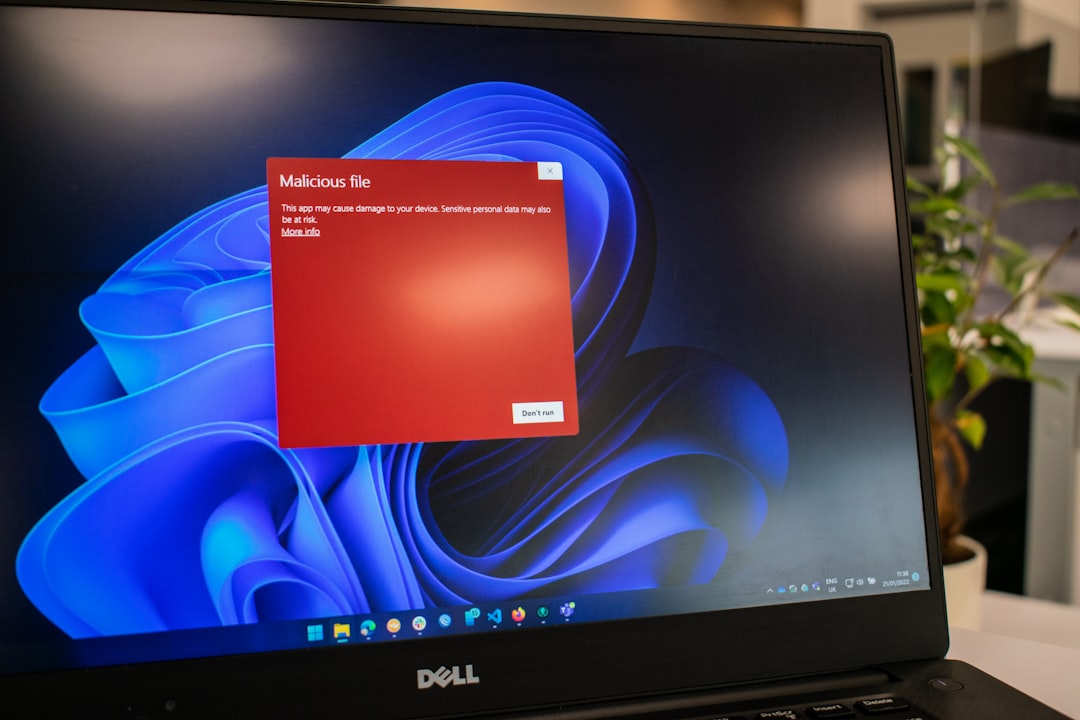
If the health status shows Caution or Bad, replace the drive. Immediately.
Drives are cheaper than lost data.
5. Run Macrium Reflect as Administrator
Permissions matter.
If Macrium doesn’t have full system access, it may fail while writing backup files.
Simple fix:
- Right-click Macrium Reflect
- Select Run as administrator
If that works, you can make it permanent:
- Right-click the shortcut
- Click Properties
- Go to Compatibility
- Check Run this program as an administrator
This solves many “mystery” backup failures instantly.
6. Update Macrium Reflect
Running an outdated version? That could be it.
Software bugs get fixed regularly. Backup engines improve. Compatibility issues get resolved.
To check for updates:
- Open Macrium Reflect
- Go to Other Tasks
- Click Check for updates
Install the latest version. Restart your PC. Test again.
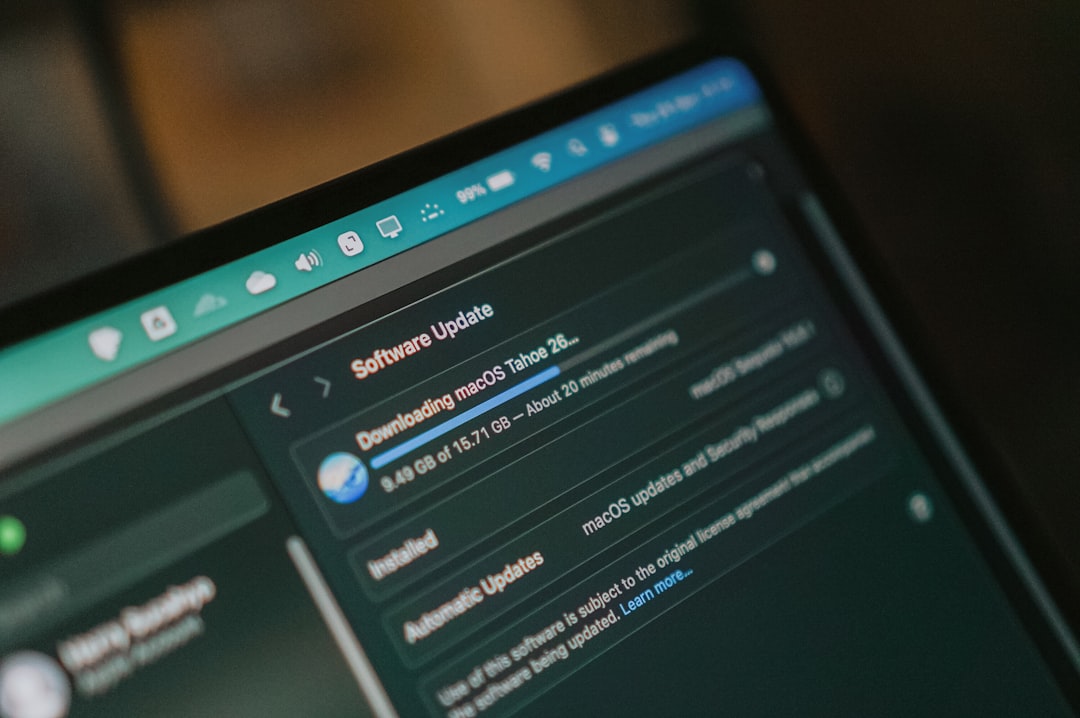
Many users report Error 9 disappearing after an update. It’s a quick win.
7. Recreate the Backup Definition File
Sometimes the backup configuration itself becomes corrupted.
Instead of troubleshooting forever, try this:
- Delete the old backup definition file
- Create a new backup job from scratch
- Select the same source and destination
It takes five minutes. But it can solve stubborn errors.
If you scheduled backups, remember to recreate the schedule.
Quick Comparison: Disk Diagnostic Tools
| Tool | Best For | Ease of Use | Free Version |
|---|---|---|---|
| CHKDSK | Fixing file system errors | Moderate | Yes Built into Windows |
| CrystalDiskInfo | Monitoring drive health | Very Easy | Yes |
| SeaTools | Advanced drive diagnostics | Easy | Yes |
| WD Dashboard | Western Digital drives | Very Easy | Yes |
If you’re unsure where to start, use CHKDSK first. Then check CrystalDiskInfo for deeper insights.
Bonus Tips to Prevent Error 9 in the Future
Let’s keep this from happening again.
- Replace external drives every 3 to 5 years
- Use high quality USB cables
- Keep at least 20 percent free space
- Run monthly disk health checks
- Store backups on two different devices
Backups should reduce stress. Not create it.
When to Worry
Most Error 9 cases are minor.
But you should take action immediately if:
- The drive makes clicking noises
- Backups fail repeatedly across different drives
- Your system freezes during backup
- SMART status shows drive failure
In that case, back up important files manually right away.
Better safe than sorry.
Final Thoughts
Macrium Reflect Error 9 looks intimidating. But it’s usually a simple fix.
Start with the basics. Check connections. Verify disk space. Run CHKDSK. Update software.
Most users solve it within one or two steps.
Remember: a backup that fails silently is dangerous. But a backup that shows an error is actually helping you. It’s warning you before a real disaster happens.
Fix the issue. Run the backup again. And enjoy the peace of mind that comes with knowing your data is safe.
Because when your system crashes someday—and it probably will—you’ll be very glad you did.

