
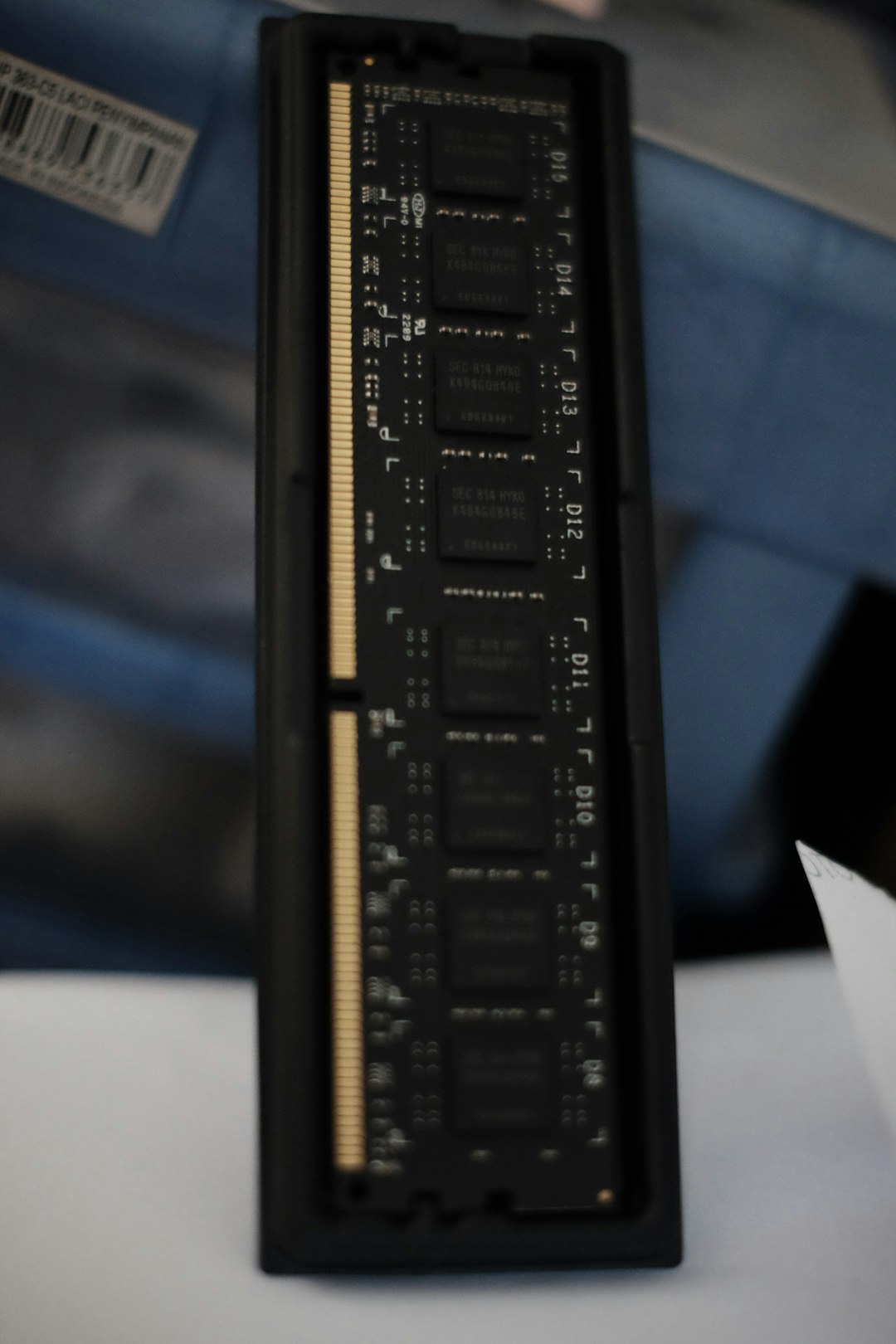
You upgraded the RAM in your HP laptop. You were excited. Faster speed. Better multitasking. More power. Then you pressed the power button… and nothing happened. No lights. No screen. No fan noise. Just silence. Don’t panic. This is a common problem. And most of the time, it’s easy to fix.
TLDR: If your HP laptop won’t turn on after a RAM upgrade, the new RAM is likely not compatible, not seated correctly, or installed incorrectly. Remove the new RAM and test the old one to confirm the issue. Reseat or replace the RAM with a compatible module. With a few simple checks, your laptop should be back to life.
Why This Happens
RAM upgrades are usually simple. But laptops can be picky. Very picky.
Here are the most common reasons your HP laptop won’t power on after a RAM upgrade:
- RAM not seated properly
- Wrong type of RAM
- Incompatible speed or voltage
- Faulty RAM stick
- Static damage during installation
- Mixed RAM issues
The good news? Most of these are easy to test.
First: Don’t Assume It’s Dead
Before you do anything extreme, pause.
Your laptop is probably not broken. It’s likely just refusing to boot because something isn’t right with the memory.
Computers are dramatic like that.
Step 1: Perform a Power Reset
Sometimes your laptop just needs a reset.
Here’s how:
- Turn off the laptop completely.
- Unplug the charger.
- Remove the battery (if removable).
- Hold the power button for 15–20 seconds.
- Plug the charger back in (leave battery out for now).
- Try turning it on.
This drains leftover power. It can fix minor hardware confusion.
If it turns on now, great. If not, move to the next step.
Step 2: Check If the RAM Is Properly Seated
This is the number one cause.
RAM must click firmly into place. Even slightly loose RAM can stop your system from starting.
Open the back panel again.
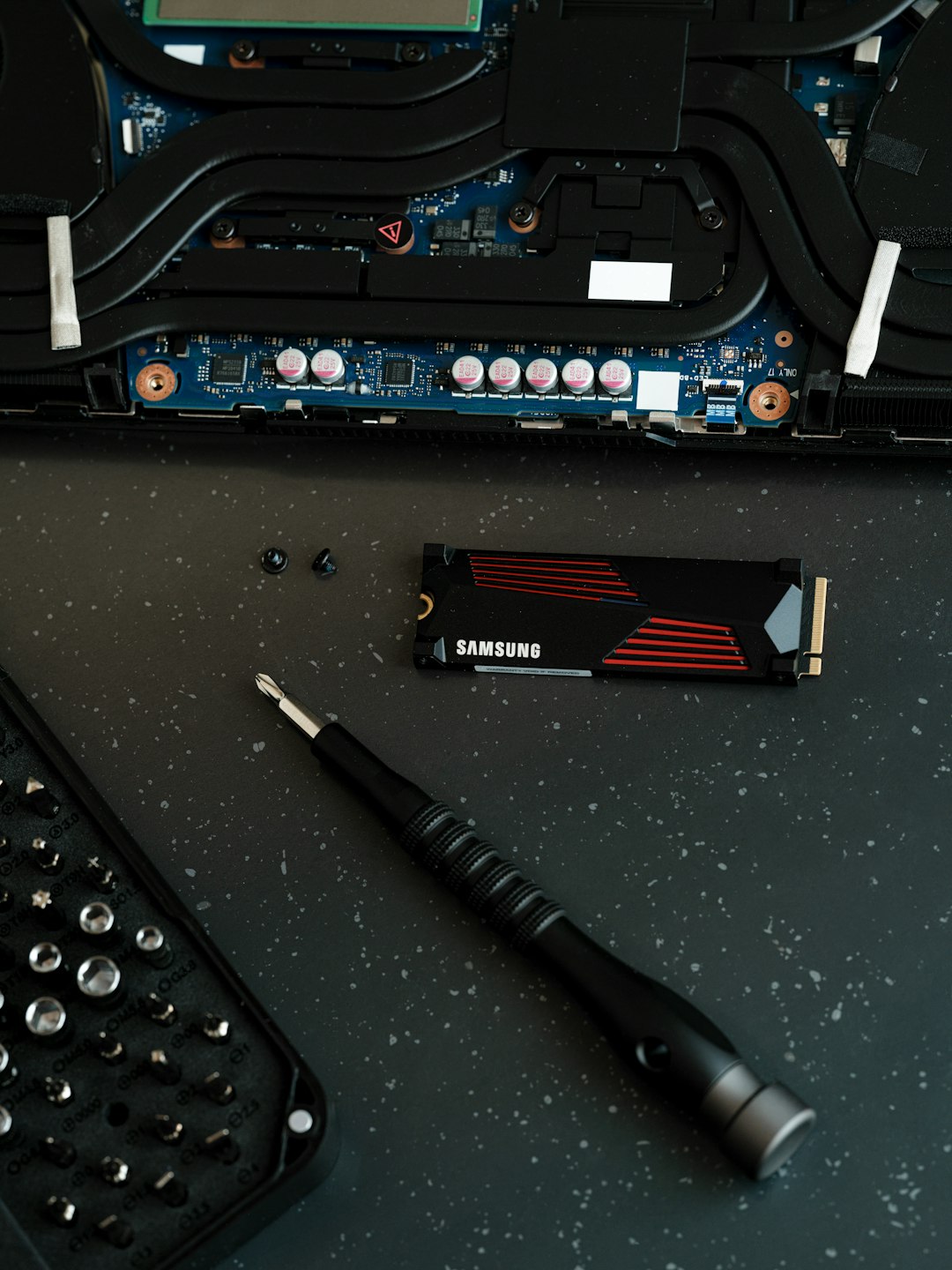
Now check:
- Is the RAM inserted at the correct angle? (usually 30–45 degrees)
- Did you push it down until the side clips snapped into place?
- Are both clips locked?
If not, remove it and reinstall carefully.
Tip: You should hear or feel a small click on both sides.
Try powering on again.
Step 3: Test With the Old RAM
This step is important.
Remove the new RAM completely. Put the old RAM back in.
Now turn the laptop on.
- If it turns on → The new RAM is the issue.
- If it still doesn’t turn on → Something else happened during installation.
This simple test tells you a lot.
Step 4: Make Sure the RAM Is Compatible
Not all RAM works with all laptops.
You must check:
- DDR type (DDR3, DDR4, DDR5)
- Speed (e.g., 2400MHz, 3200MHz)
- Maximum supported RAM
- Voltage requirements
If your HP laptop uses DDR4, DDR5 won’t work. Even if it fits physically.
Check your laptop model on HP’s official website. Look at the specifications page.
You can also search: Your laptop model + maximum RAM capacity.
Some HP laptops support only certain speeds. Installing faster RAM won’t always work.
Step 5: Try One Stick at a Time
If you installed two sticks, remove one.
Test each stick individually.
- Insert one RAM stick.
- Try turning it on.
- If it fails, swap sticks.
- Test again.
This helps you identify:
- A faulty RAM stick
- A bad RAM slot
- A compatibility issue when mixing modules
Sometimes one slot works and the other doesn’t. That’s valuable information.
Step 6: Check for Mixed RAM Problems
Mixing RAM brands can work. But sometimes it doesn’t.
Problems can happen if:
- Speeds are different
- Voltages don’t match
- Timings are different
- One stick is high density and the other isn’t
For best results, use:
Matching RAM sticks from the same manufacturer and model line.
They are tested to work together.
Step 7: Look for Signs of Life
When you press power, check carefully.
- Do keyboard lights flash?
- Does the fan spin briefly?
- Do you hear beeping sounds?
HP laptops often use blink codes.
For example:
- 2 flashes = BIOS issue
- 3 flashes = memory problem
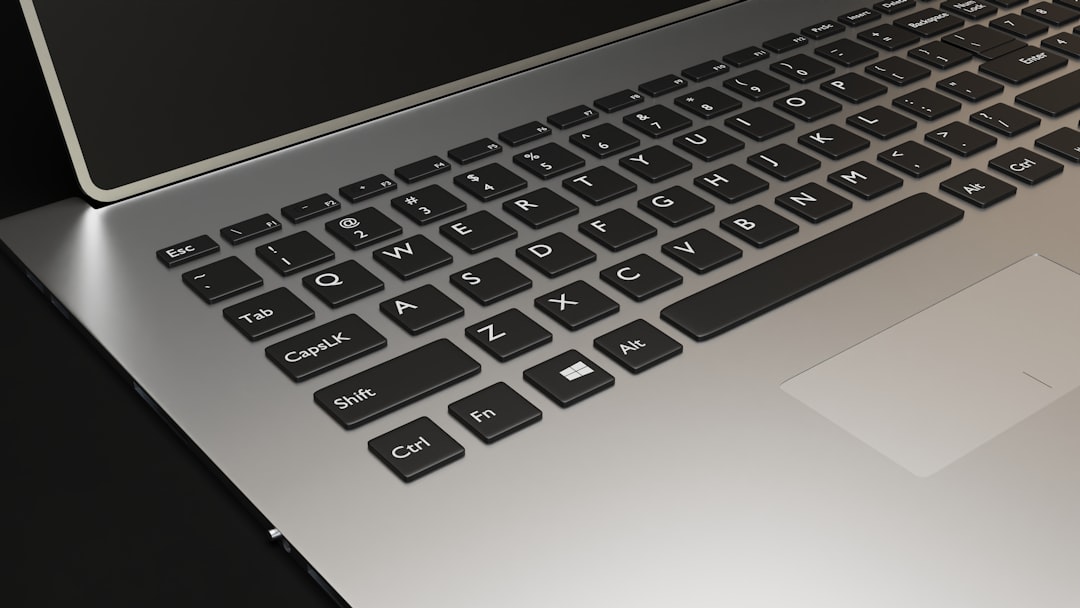
Count the caps lock or num lock blinking pattern.
Search for: HP blink codes + your model.
This can point directly to a RAM error.
Step 8: Check for Static Damage
Static electricity is sneaky.
If you touched components without grounding yourself, you might have damaged the RAM.
It happens. Don’t feel bad.
Signs include:
- No power at all
- No blinking lights
- No response even with old RAM
This is rare. But possible.
To prevent this in the future:
- Touch a metal surface before handling components.
- Use an anti static wrist strap.
- Work on a non carpeted surface.
Step 9: Reset the BIOS (If Possible)
Some HP laptops allow BIOS reset.
Try this:
- Turn off the laptop.
- Hold Windows key + B.
- While holding, press the power button for 2–3 seconds.
- Release the power button but keep holding Windows + B.
If supported, the BIOS recovery screen may appear.
This can fix boot conflicts after RAM changes.
When to Return the RAM
If:
- Old RAM works perfectly
- New RAM never works in any slot
- Compatibility matches on paper
Then your new RAM may simply be defective.
It happens more often than you think.
Return it. Ask for a replacement.
How to Choose the Right RAM Next Time
Let’s avoid this stress again.
Here’s what to do:
- Use a RAM compatibility tool (like Crucial or Kingston memory finder)
- Search by exact HP model number
- Buy matched kits instead of separate sticks
- Don’t exceed max supported capacity
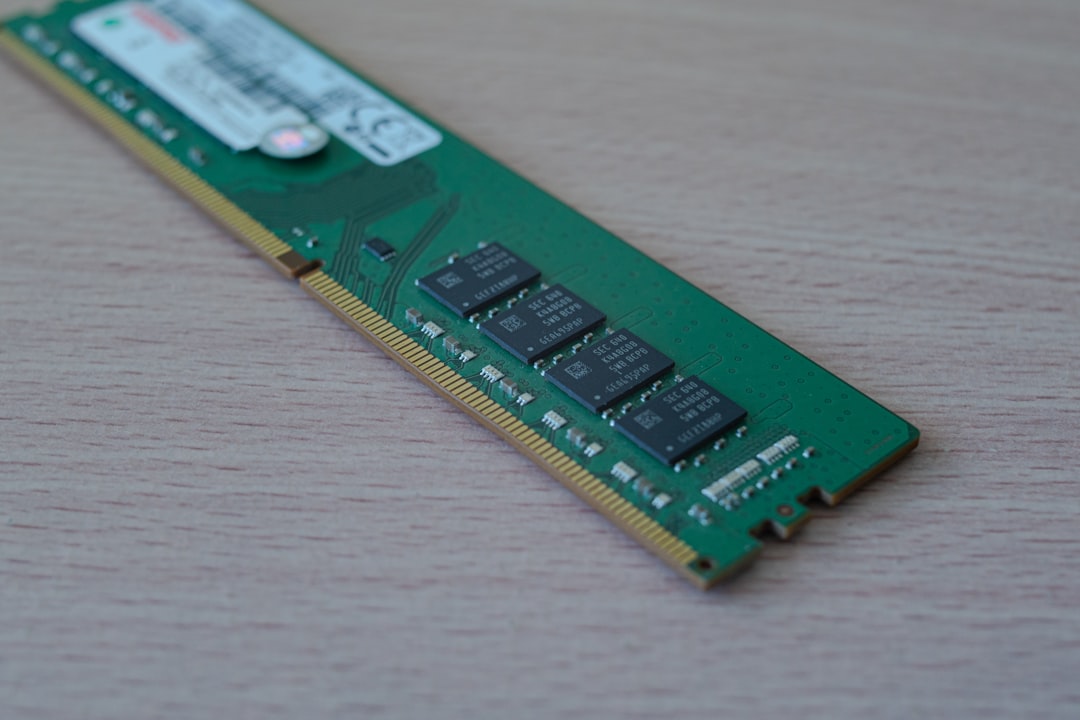
This lowers risk dramatically.
Signs the Motherboard Might Be the Issue
Very rare. But possible.
If:
- Laptop won’t power on even with original RAM
- No LEDs light up
- No reaction at all
Then something may have shorted.
In that case, professional repair may be needed.
But again, this is uncommon.
Quick Troubleshooting Checklist
Let’s simplify everything.
Run through this list:
- Power reset done?
- RAM fully clicked in?
- Tested old RAM again?
- Checked compatibility?
- Tested one stick at a time?
- Looked at blink codes?
Most people solve the issue by step two or three.
Final Thoughts
A RAM upgrade should make your laptop faster. Not scarier.
If your HP laptop won’t turn on after installing new RAM, stay calm. It’s usually one of three things:
- Not seated properly
- Not compatible
- Defective
Computers are strict about memory. Very strict.
But they are also logical. If you test step by step, you’ll find the problem.
And when it finally boots up?
It feels amazing.
Faster apps. Smoother multitasking. Less waiting.
Totally worth the effort.
So grab a screwdriver. Take a deep breath. And give your laptop a second chance.
You’ve got this.

