
Few Windows warnings are as alarming as the blue screen message that says, “Your device ran into a problem and needs to restart.” It often appears suddenly, interrupts your work, and may restart the computer before you can read the details. The good news is that this error is usually fixable. In most cases, it is caused by faulty drivers, corrupted system files, problematic updates, overheating, bad memory, or software conflicts.
TLDR: The “Your device ran into a problem” error is a Windows crash screen, commonly known as a Blue Screen of Death. Start by noting the stop code, restarting the PC, and removing recently installed software or hardware. Then update drivers, run system repair commands, check memory and storage health, and uninstall faulty Windows updates if needed. If nothing works, use System Restore, reset Windows, or seek hardware diagnostics.
What This Error Actually Means
When Windows displays “Your device ran into a problem and needs to restart,” it means the operating system encountered a serious issue it could not safely recover from. Instead of continuing and risking data corruption, Windows stops, collects diagnostic information, and restarts.
This screen may also show a stop code, such as:
- CRITICAL_PROCESS_DIED
- MEMORY_MANAGEMENT
- IRQL_NOT_LESS_OR_EQUAL
- SYSTEM_SERVICE_EXCEPTION
- PAGE_FAULT_IN_NONPAGED_AREA
- INACCESSIBLE_BOOT_DEVICE
The stop code is a valuable clue. It can point toward memory problems, driver conflicts, storage errors, or boot issues. If the screen disappears too quickly, you may be able to find the same information later in Event Viewer or the Windows reliability history.
Step 1: Restart and Note the Stop Code
If this is the first time you have seen the error, restart your computer and observe what happens. A one-time blue screen can occur after a temporary driver hiccup, power interruption, or failed background process. However, if the error keeps returning, write down the stop code and any file name shown on the screen, such as a file ending in .sys.
That file name may identify the driver causing the crash. For example, graphics, network, audio, antivirus, and storage drivers are common suspects. Even if you do not understand the code immediately, keeping a record helps you search accurately and avoid random troubleshooting.
Step 2: Disconnect External Devices
External hardware can trigger crashes, especially if a device driver is damaged or incompatible. Shut down your PC and unplug nonessential devices, including:
- USB drives
- External hard drives
- Printers and scanners
- Docking stations
- Webcams
- Game controllers
- USB hubs
Start the computer with only the keyboard, mouse, monitor, and power cable connected. If the error stops, reconnect devices one at a time until the crash returns. That device, its cable, or its driver may be the cause.
Step 3: Boot Into Safe Mode
If Windows crashes repeatedly and you cannot use it normally, try Safe Mode. Safe Mode loads Windows with minimal drivers and services, making it easier to remove problematic software or drivers.
- Turn the PC on and interrupt startup several times by holding the power button when Windows begins loading.
- After a few failed starts, Windows should open Automatic Repair.
- Choose Advanced options.
- Select Troubleshoot > Advanced options > Startup Settings.
- Click Restart.
- Press 4 for Safe Mode or 5 for Safe Mode with Networking.
If the computer works normally in Safe Mode, the issue is likely related to a driver, startup program, recent update, or third-party application.
Step 4: Remove Recently Installed Apps or Drivers
Think about what changed before the error began. Did you install new software? Update a graphics driver? Add antivirus software? Connect a new device? Many blue screen errors appear shortly after a system change.
To uninstall an app, go to Settings > Apps > Installed apps, then remove anything suspicious or recently added. Restart afterward.
To roll back a driver:
- Right-click the Start button.
- Open Device Manager.
- Expand the relevant category, such as Display adapters or Network adapters.
- Right-click the device and choose Properties.
- Open the Driver tab.
- Click Roll Back Driver if available.
If rolling back is not available, try uninstalling the device driver and restarting. Windows may reinstall a stable default driver automatically.
Step 5: Update Windows and Device Drivers
Outdated system files and drivers can cause instability, especially after major Windows updates. Open Settings > Windows Update and install available updates. Also check Advanced options > Optional updates, where driver updates may appear.
For important components like graphics cards, Wi-Fi adapters, motherboard chipsets, and storage controllers, visit the manufacturer’s website. Download drivers only from trusted sources, such as your PC manufacturer or the hardware maker. Avoid random driver updater tools, as they can install incorrect drivers and make the problem worse.
Step 6: Run System File Checker and DISM
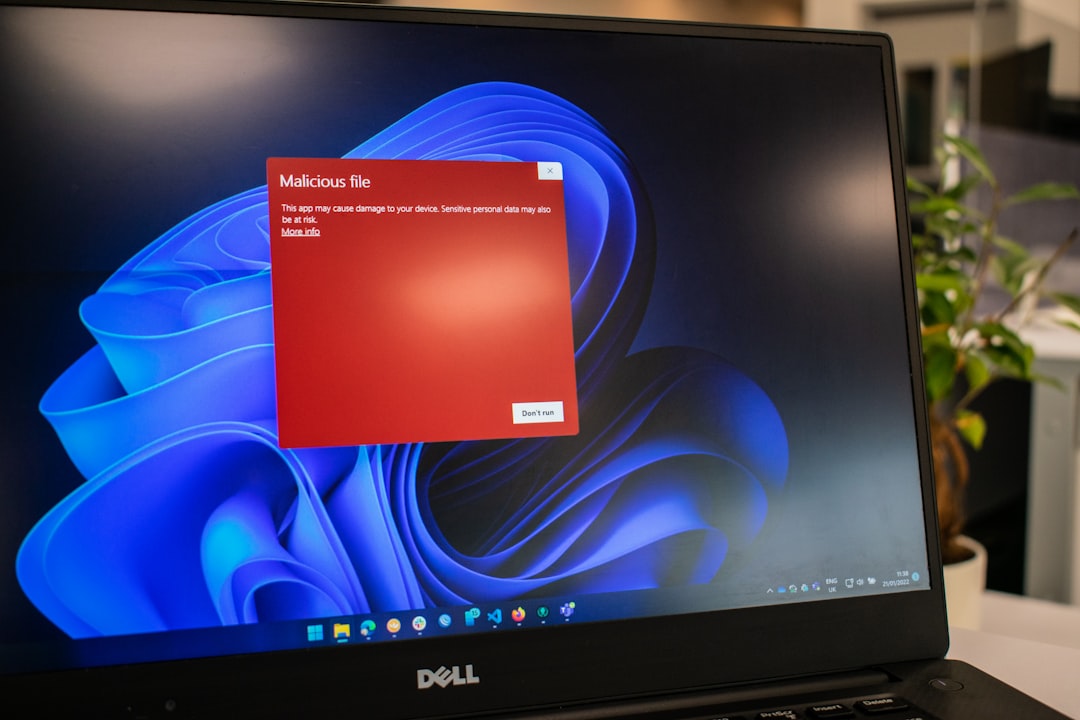
Corrupted Windows files are another common cause of the “Your device ran into a problem” error. Windows includes built-in repair tools that can scan and restore damaged system components.
Open Command Prompt or Windows Terminal as an administrator, then run:
sfc /scannowWait for the scan to finish. If it reports that it found and repaired files, restart your PC. If the problem continues, run these commands one at a time:
DISM /Online /Cleanup-Image /CheckHealth
DISM /Online /Cleanup-Image /ScanHealth
DISM /Online /Cleanup-Image /RestoreHealth
After DISM completes, run sfc /scannow again. This combination often fixes damaged system files that ordinary restarts cannot repair.
Step 7: Check Your Disk for Errors
A failing or corrupted drive can trigger blue screen errors, especially stop codes related to boot devices, paging, or file system problems. To check your system drive, open an administrator Command Prompt and type:
chkdsk C: /f /rWindows may say the drive is in use and ask whether you want to schedule the scan for the next restart. Type Y, press Enter, and restart the computer. The scan may take a long time, especially on large drives.
If your PC has an SSD, also check the manufacturer’s diagnostic utility. Many SSD makers provide tools that report drive health, firmware status, and remaining lifespan. If the drive shows serious errors, back up your files immediately.
Step 8: Test Your RAM
Memory problems often cause unpredictable crashes. One moment the PC may work normally; the next, it may show a blue screen during gaming, browsing, video editing, or even while idle.
To use the built-in Windows memory test:
- Press Windows + R.
- Type mdsched.exe and press Enter.
- Choose Restart now and check for problems.
Your computer will restart and test the RAM. If errors are found, you may need to reseat the memory modules, test one stick at a time, or replace faulty RAM. On desktops, dusty slots or improperly seated modules can also cause memory-related crashes.
Step 9: Uninstall Problematic Windows Updates
Although updates usually improve security and stability, sometimes a specific update causes trouble on certain systems. If the error started immediately after a Windows update, uninstalling the latest update may help.
Go to Settings > Windows Update > Update history > Uninstall updates. Remove the most recent quality update, then restart. If your PC cannot boot normally, you can access this option through Advanced Startup under Troubleshoot > Advanced options > Uninstall Updates.
Step 10: Check for Overheating
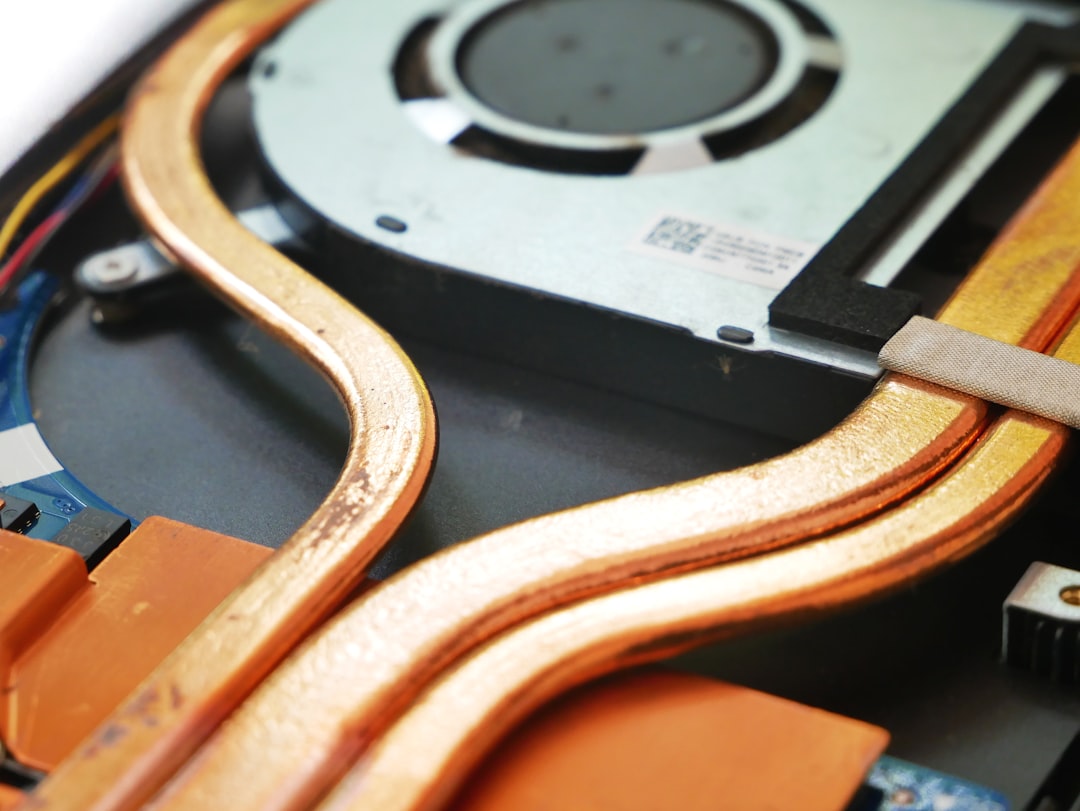
Heat can make a stable computer behave like a broken one. If the error appears during gaming, rendering, or heavy multitasking, overheating may be involved. Listen for loud fans, feel for excessive heat near vents, and check whether the laptop is being used on a soft surface that blocks airflow.
Clean dust from vents and fans using compressed air. For desktops, make sure internal fans are spinning and cables are not blocking airflow. If temperatures remain high, the CPU or GPU thermal paste may need replacement.
Step 11: Use System Restore
If the error began recently and you cannot identify the exact cause, System Restore can return Windows settings, drivers, and system files to an earlier working state without deleting your personal documents.
Search for Create a restore point, open it, and click System Restore. Choose a restore point created before the crashes began. If Windows will not boot, access System Restore from Advanced Startup.
This is especially useful after driver installations, registry changes, or software updates that made the system unstable.
Step 12: Reset Windows as a Last Resort
If none of the previous steps work, resetting Windows may be the most practical solution. Go to Settings > System > Recovery > Reset this PC. You can choose Keep my files or Remove everything.
Keep my files preserves personal files but removes apps and resets system settings. Even so, you should back up important data before continuing. If the error is caused by software corruption, a reset often solves it. If the error returns after a clean reset, hardware is more likely to blame.
How to Prevent the Error in the Future
Once your PC is stable again, a few habits can reduce the chance of seeing this crash screen again:
- Keep Windows updated, but avoid interrupting updates once they start.
- Install drivers from official sources rather than unknown websites.
- Back up important files regularly to an external drive or cloud storage.
- Monitor disk health, especially if your PC is older or unusually slow.
- Keep the computer cool by cleaning dust and maintaining airflow.
- Avoid forced shutdowns unless the system is completely frozen.
Final Thoughts
The “Your device ran into a problem” error looks serious, but it is usually a symptom rather than a mystery. Windows is telling you that something essential failed: a driver, a system file, memory, storage, or hardware communication. By working methodically through the likely causes, you can often fix the problem without replacing the computer.
Start with the simplest steps: unplug devices, remove recent changes, update drivers, and repair system files. If the crashes continue, test your disk, memory, and temperature. With patience and a clear process, you can turn a frightening blue screen into a solvable maintenance task.

