

Start with the simple fix: delete the phone from the car, delete the car from the phone, restart both, then pair again with the vehicle in Park. Many “Bluetooth” failures are really Android Auto or Apple CarPlay handshake failures, especially in newer cars that use Bluetooth only to start a Wi Fi or USB session. Bluetooth device shipments remain huge, with billions of devices shipped each year, so pairing conflicts are common rather than rare [source: Bluetooth SIG].
TLDR: If a phone will not connect to a car, the fastest fix is usually to remove old pairings, reboot, update the phone, then reconnect with the cable or wireless setup method the car expects. For example, a driver who changed from a Galaxy S22 to an iPhone 15 may still have the old phone stored in the infotainment system, causing calls to connect to the wrong device. Expect to waste 10 to 20 minutes if the car has a crowded Bluetooth list. Android Auto often needs app, permission, and USB checks, while Apple CarPlay often needs Siri, Screen Time, and cable checks.
Why Bluetooth Fails in Cars
Car Bluetooth sounds simple, but it is not one single connection. A phone may pair for calls, stream audio over another profile, share contacts through another permission, and launch Android Auto or CarPlay through a separate wired or wireless process.
That is why a driver may see “connected” on the dashboard but still get no maps, no music, or no microphone. Honestly, it feels like the car is lying. The phone shows a connection. The car shows a connection. Yet nothing useful happens.
Common causes include:
- Too many saved devices in the car’s Bluetooth memory.
- Old pairings from previous phones or rental drivers.
- Low quality USB cables that charge but do not pass data.
- Disabled permissions for contacts, calls, microphone, or notifications.
- Outdated firmware on the phone or infotainment system.
- Wireless interference from other phones, earbuds, or Wi Fi hotspots.
First Fixes for Any Phone
Before blaming Android Auto or Apple CarPlay, the driver should reset the basic connection path.
- Turn the car fully off. Open the door if needed so the infotainment system shuts down.
- Restart the phone. A quick restart clears stuck Bluetooth sessions.
- Delete the car from the phone. On Android or iPhone, go to Bluetooth settings, tap the car name, then forget it.
- Delete the phone from the car. Use the car’s device list and remove old phones too.
- Pair again from the car screen. Do not pair while the car is moving.
- Accept every permission prompt. Contacts, calls, messages, and microphone access all matter.
If that fails, the driver should test another phone. If a second phone connects, the issue is likely the first phone. If no phone connects, the car’s infotainment system, fuse, software, or Bluetooth module may be the problem.
Android Auto Troubleshooting
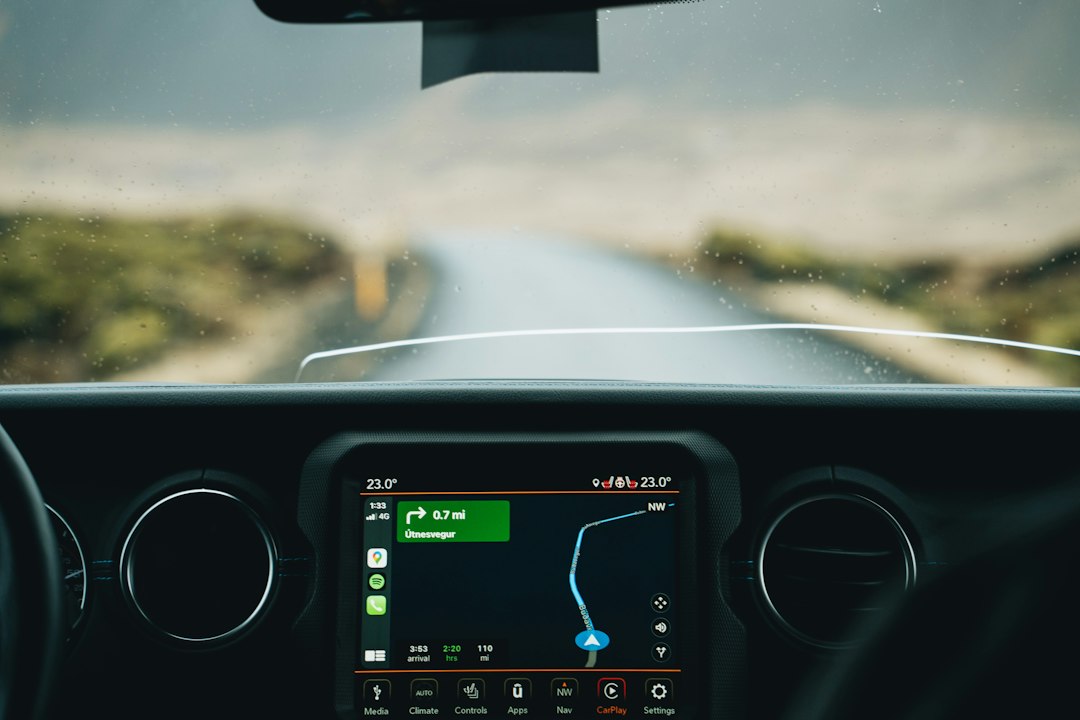
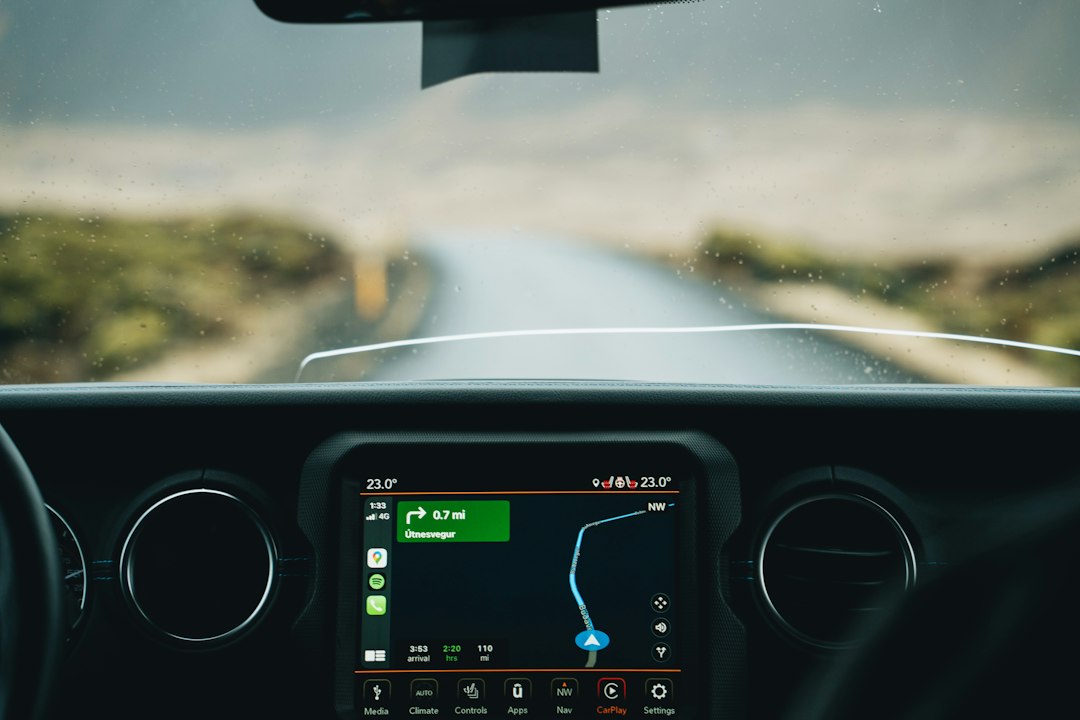
Android Auto can work by USB cable or wirelessly, depending on the car and phone. Google says Android Auto requires a compatible Android phone, a compatible car, and the Android Auto app or built in support on newer Android versions [source: Google].
The driver should check these items first:
- Update Android. Install pending system updates.
- Update Google Play services. Android Auto depends on Google services in the background.
- Check app permissions. Phone, contacts, location, microphone, SMS, and notification access may be needed.
- Use a better cable. A short USB cable rated for data is best. Many cheap cables only charge.
- Try a different USB port. Some cars have one data port and several charge only ports.
- Turn off battery saver. Aggressive battery controls can kill Android Auto after launch.
Wireless Android Auto adds more possible failure points. It usually needs Bluetooth for setup, then Wi Fi for the main connection. If Wi Fi is off, if a VPN blocks local connections, or if the phone is already tied to another hotspot, the system may stall.
A useful Android reset path is:
- Open Settings.
- Go to Connected devices.
- Forget the car.
- Go to Apps, then Android Auto.
- Clear cache.
- Restart the phone.
- Pair again inside the parked car.
It drives people crazy that Android Auto may fail silently after an update. One morning it works. The next morning the same cable needs five extra plug in attempts. When that happens, a fresh cable and cache clear are worth trying before a full phone reset.
Apple CarPlay Troubleshooting
Apple CarPlay also uses either USB or wireless setup, depending on the vehicle. Apple states that CarPlay needs a compatible iPhone, compatible car, and Siri turned on [source: Apple].
The driver should start here:
- Turn on Siri. CarPlay may not start without it.
- Unlock the iPhone. Some cars need the first approval while the phone is unlocked.
- Check Screen Time. CarPlay can be blocked under content restrictions.
- Use a certified cable. For wired CarPlay, a damaged or charge only cable can stop the session.
- Allow CarPlay while locked. This setting helps the car reconnect after startup.
- Forget the car. Go to CarPlay settings, remove the vehicle, then pair again.
For iPhone, the driver can go to Settings > General > CarPlay, select the vehicle, and remove it. Then the car should be deleted from Settings > Bluetooth as well. Both lists matter.
Android Auto vs Apple CarPlay: Key Differences
Android Auto problems often involve app cache, Google services, permissions, cable quality, and wireless Wi Fi handoff. Android phones vary by brand, so Samsung, Pixel, Motorola, and OnePlus devices may behave differently in the same car.
Apple CarPlay is more controlled, but it has its own traps. Siri must be on. CarPlay can be blocked by Screen Time. A workplace profile or restricted iPhone can also block pairing. The cable still matters, especially after years of heat inside a glove box.
Both systems can fail when the car has too many saved devices. Many infotainment units handle only five to ten phones well. After that, pairing may become slow or random. Removing every old device can make the system feel new again.
When the Car Is the Real Problem
If several phones fail, the car needs attention. The driver should check for infotainment updates through the vehicle settings, dealer portal, or service department. Some cars also need a system reset, which may erase radio presets and saved profiles.
Other warning signs include:
- The Bluetooth menu freezes.
- The car cannot find any phone.
- Audio cuts out every few seconds.
- Calls connect but the microphone does not work.
- The USB port charges but never launches Android Auto or CarPlay.
In that case, the issue may be a bad USB port, outdated head unit software, loose antenna, blown fuse, or failing infotainment module.
FAQ
Why does the phone connect for calls but not Android Auto or CarPlay?
Calls use basic Bluetooth. Android Auto and CarPlay may need USB, Wi Fi, permissions, Siri, app services, or a data cable.
Should the driver use Bluetooth or USB?
For reliability, USB is usually better. Wireless is convenient, but it adds Wi Fi, battery, and interference issues.
Why does Bluetooth stop working after a phone update?
An update can reset permissions, change security rules, or break an old pairing. Forgetting the car and pairing again often fixes it.
Can a cheap cable stop CarPlay or Android Auto?
Yes. Many cheap cables only charge. A short, high quality data cable is the safer choice.
What should a driver do if nothing works?
Test another phone, remove all saved devices, update the car system, and ask the dealer to check the infotainment unit if every phone fails.

