
Few things interrupt the calm, polished feel of a Mac like a cryptic error code. One moment you are installing an update, restoring files, opening an app, or connecting a drive; the next, macOS presents Error 0x2407 with little explanation. The code looks technical because it is: a hexadecimal status value passed up from one of macOS’s underlying services. Understanding it is less about memorizing the number and more about recognizing the situation in which it appears.
TLDR: macOS Error 0x2407 usually appears when the system cannot complete a task because something involved in the operation fails validation, communication, permissions, or file access checks. It may occur during updates, installations, file transfers, backups, app launches, or disk-related operations. The error is often triggered by corrupted temporary files, network interruptions, insufficient permissions, external drive problems, or security verification issues. Fixing it typically means checking storage, restarting, verifying the disk, testing the network, and repeating the operation in a cleaner environment such as Safe Mode.
What Does Error 0x2407 Mean?
Error 0x2407 is not one of those friendly macOS messages that says exactly what went wrong, such as “Your disk is almost full” or “This app can’t be opened.” Instead, it is a low-level status code. The “0x” prefix tells you the number is written in hexadecimal, a numbering system commonly used in programming and operating system diagnostics.
That does not mean the error points to one single cause every time. In practice, codes like this can be surfaced by different parts of macOS depending on the activity taking place. The important question is not only “What is Error 0x2407?” but also “What was the Mac trying to do when it appeared?”
In many cases, the error indicates that macOS started a process but could not finish it because a required component was unavailable, unreadable, untrusted, or blocked. That component might be a file, a system package, a network connection, a certificate, a user permission, or a storage device.

Why macOS Shows Error 0x2407
macOS is built around layers of verification. Apps are checked before they run, updates are validated before installation, disks are mounted with permissions and file-system rules, and network services must respond correctly. Error 0x2407 often appears when one of those checks fails.
1. A File or Package Cannot Be Verified
One common reason is that macOS cannot verify a file involved in the operation. This may happen with an update package, installer, app component, backup item, or downloaded file. If the file is incomplete, outdated, modified, or corrupted, macOS may refuse to continue.
This is especially likely if the task was interrupted earlier. For example, a software update may have started downloading, then paused because the Mac went to sleep or the internet connection dropped. When macOS later tries to continue, the cached file may no longer match what the system expects.
2. Disk or File-System Problems
Error 0x2407 can also appear when macOS cannot read from or write to a disk correctly. The disk does not have to be failing completely; even minor file-system inconsistencies can interfere with installations, backups, migrations, or copying files.
Possible disk-related causes include:
- Corrupted directory data on an internal or external drive
- Bad permissions on folders needed by the operation
- Insufficient free space for temporary files
- External drive disconnections during transfer or backup
- Unsupported or unstable disk formats, especially with removable storage
3. Network Interruptions
Many macOS actions depend on Apple servers or other network services. Software Update, iCloud sync, App Store downloads, certificate checks, and device management profiles may all require a stable connection. If the Mac cannot reach the required service or receives an incomplete response, a vague code such as 0x2407 may appear.
This is why the error sometimes seems random. The same action may fail on one Wi-Fi network and work perfectly on another. A captive portal, VPN, firewall, proxy, DNS issue, or temporary server interruption can all be involved.
4. Security and Permission Conflicts
Modern macOS versions are strict about privacy and system integrity. If an action requires access to protected areas such as Desktop, Documents, Downloads, removable volumes, system extensions, or application support folders, macOS may block it unless the app or service has permission.
Security tools can complicate this further. Antivirus software, endpoint protection, corporate device management, VPN clients, and disk monitoring utilities may intercept files while macOS is trying to validate or modify them. That can lead to failed checks and unexpected error codes.
When Does Error 0x2407 Usually Occur?
The timing of the error is often the best clue. While the number itself is not very descriptive, the surrounding activity usually narrows the cause.
During macOS Updates
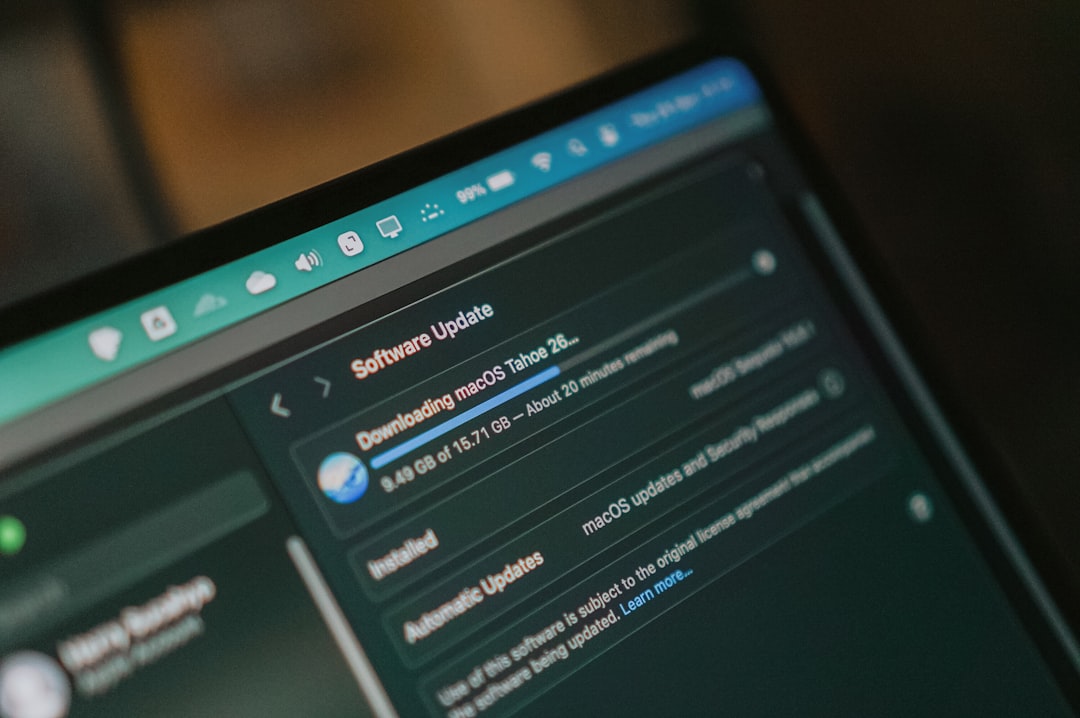
Many users encounter error codes while downloading or installing macOS updates. Error 0x2407 may appear if the update package is incomplete, the Mac lacks storage space, the system cannot contact Apple’s update servers, or the installer cannot write required files.
Updates are particularly sensitive because they involve multiple stages: downloading, verifying, preparing, rebooting, installing, and cleaning up. A failure at any stage can produce a technical code instead of a plain-language explanation.
When Installing or Opening Apps
If the error appears while installing or launching an application, the cause may be related to Gatekeeper, quarantine attributes, damaged app bundles, or missing permissions. Apps downloaded outside the App Store are more likely to trigger verification problems, especially if the download was interrupted or the app is not properly signed.
In this situation, the error is not necessarily saying the app is malicious. It may simply mean macOS cannot prove the app is intact and trusted. Re-downloading the app from the original source often solves the problem.
During File Transfers or Backups
Error 0x2407 may occur when copying files to an external drive, restoring from a backup, using Migration Assistant, or running Time Machine. These operations depend heavily on disk health, permissions, and uninterrupted access.
For example, an external drive that briefly disconnects because of a loose cable may continue to appear in Finder but fail during a deeper write operation. Similarly, a backup may contain a file that macOS cannot read, causing the process to stop with a code rather than a detailed explanation.
When Using iCloud or Network Services
iCloud Drive, Photos, Mail, and other synchronized services can also expose hidden system errors. If a file is only partially downloaded, locked by another process, or waiting for synchronization, macOS may fail to access it at the exact moment an app requests it.
This can make the error appear inconsistent. A document may fail to open now, then open later after iCloud finishes syncing. The same applies to files stored on network drives or cloud folders managed by third-party sync apps.
How to Diagnose the Error
Start by noting what you were doing when the error appeared. Was it an update, an app install, a backup, a file copy, or an iCloud action? Then look for the most likely weak point in that process.
- If it happened during an update: check storage, restart the Mac, and try again on a reliable network.
- If it happened with an app: delete the installer or app copy and download it again from a trusted source.
- If it happened with a disk: run First Aid in Disk Utility and test a different cable or port.
- If it happened online: disable VPN temporarily, test another network, and check Apple’s system status page.
- If it happened after installing security software: temporarily disable scanning or check its logs.
You can also restart in Safe Mode. Safe Mode loads only essential system components, clears certain caches, and prevents many third-party background tools from launching. If the operation works in Safe Mode, the cause is likely a cache problem, login item, extension, or background utility.
Practical Fixes Worth Trying
There is no single universal button for Error 0x2407, but the following steps solve many cases:
- Restart the Mac. This clears temporary states and releases files that may be locked.
- Check available storage. Keep at least 15–25 GB free when updating macOS.
- Verify date and time. Incorrect time settings can break certificate and server validation.
- Run Disk Utility First Aid. Check both the internal disk and any external drive involved.
- Use a stable network. Avoid public Wi-Fi, captive portals, and unstable VPN connections during updates.
- Re-download the file or installer. A fresh copy often fixes checksum or corruption issues.
- Try Safe Mode. This helps isolate conflicts caused by extensions and background apps.

When Should You Be Concerned?
A single appearance of Error 0x2407 is usually not a disaster. It may simply reflect a failed download, a disconnected drive, or a temporary permission issue. However, repeated appearances during different tasks deserve more attention.
You should investigate further if the error appears alongside:
- Frequent app crashes
- Slow startup or shutdown
- External drives ejecting unexpectedly
- macOS updates repeatedly failing
- Files disappearing, duplicating, or refusing to open
- Disk Utility reporting errors it cannot repair
In those cases, back up important data before experimenting. A persistent error involving storage or system updates can be an early warning sign of file-system trouble, failing hardware, or a damaged macOS installation.
The Bottom Line
macOS Error 0x2407 is frustrating because it does not explain itself. Still, it usually appears when macOS cannot complete an operation due to a verification failure, access problem, corrupted file, unstable network, or disk issue. The key to solving it is context: identify what was happening at the moment the code appeared, then test the most likely part of that chain.
Most of the time, simple steps such as restarting, freeing space, re-downloading an installer, repairing the disk, or switching networks will clear the problem. If the error returns repeatedly, treat it as a signal to inspect your Mac more carefully, make a backup, and consider professional support before a small interruption becomes a larger failure.

