

Twitch is great when it works. You click a stream. The chat flies by. The streamer screams at a boss fight. Then boom. A black screen appears with Error 2000. Rude, right? Do not panic. This error is usually a network problem, and most fixes are quick.
TLDR: Twitch Error 2000 usually means your browser, network, or security software is blocking the stream. Start by refreshing the page, checking your internet, and clearing your browser cache. If that fails, turn off extensions, try another browser, change DNS, or disable your VPN. Most people can fix it in a few minutes.
What Is Twitch Error 2000?
Twitch Error 2000 is a network error. It means your browser cannot load the Twitch video stream. The page may load. The chat may work. But the video player says no.
This can happen for many reasons. Your internet may be unstable. Your browser may be holding bad data. An ad blocker may block part of Twitch. Your antivirus may think the stream is suspicious. A VPN may route traffic in a strange way.
Think of Twitch like a pizza delivery. The streamer sends hot video pizza to your browser. Error 2000 means the pizza got stuck on the road. We just need to find the traffic jam.

First, Try the Easy Fixes
Start simple. Do not rebuild your whole network yet. That is like using a flamethrower to toast bread.
- Refresh the page. Press F5 or click the reload button.
- Close the tab. Open Twitch again in a new tab.
- Restart your browser. Close it fully. Then open it again.
- Check another stream. The issue may be one channel only.
- Check Twitch status. Twitch itself may be having trouble.
If one stream fails but others work, the issue may be with that streamer or Twitch’s delivery servers. Go grab water. Stretch. Return like a calm tech wizard.
Check Your Internet Connection
Error 2000 often appears when your connection drops for a moment. Streams need stable data. They do not like hiccups.
Try these steps:
- Open another website, like a news site or search engine.
- Play a video on another platform.
- Run a speed test.
- Restart your router.
- Move closer to your Wi Fi router.
If your Wi Fi is weak, Twitch may struggle. Walls, microwaves, and distance can all bully your signal. If possible, use an Ethernet cable. Wired internet is less fancy, but it is very reliable. It is the sensible shoes of networking.
If many devices are streaming, gaming, or downloading at once, your connection may be crowded. Pause large downloads. Ask your housemate if they are downloading the entire internet. Politely, if possible.
Clear Browser Cache and Cookies
Your browser stores files to make websites load faster. This is called the cache. Sometimes, cached files get old or broken. Then Twitch acts weird.
Clearing cache can help. It is like cleaning crumbs out of a keyboard. Gross, but useful.
For Chrome:
- Click the three dots in the top right.
- Go to Settings.
- Choose Privacy and security.
- Click Clear browsing data.
- Select Cached images and files and Cookies.
- Click Clear data.
For Firefox:
- Click the menu button.
- Open Settings.
- Go to Privacy and Security.
- Find Cookies and Site Data.
- Click Clear Data.
After clearing data, restart the browser. Then open Twitch again. You may need to log in again. That is normal.
Disable Browser Extensions
Extensions can be helpful. They can also be tiny chaos gremlins. Ad blockers, script blockers, privacy tools, and video tools may interfere with Twitch.
Try turning them off for a moment. Then test Twitch.
- Ad blockers may block Twitch video requests.
- Privacy extensions may block tracking scripts Twitch needs.
- Script blockers may stop the player from loading.
- Download extensions may conflict with media playback.
You do not have to delete them. Just disable them and test. If Twitch works, turn them back on one by one. When the error returns, you found the troublemaker.
Some extensions let you add Twitch to an allow list. This lets Twitch work while the extension keeps protecting other sites. Nice. Very civilized.
Try Incognito or Private Mode
Private mode opens a clean browser session. It often disables extensions by default. It also avoids some stored cookies.
Open a private window. Then visit Twitch. If the stream works there, your normal browser profile has a problem. The likely causes are cache, cookies, or extensions.
This is a great test because it is fast. It also makes you feel like a secret agent. A secret agent who just wants to watch a speedrun.
Try Another Browser
If Twitch fails in one browser, try another. Use Chrome, Firefox, Edge, Safari, or Opera. You do not need to marry the new browser. Just test it.
If Twitch works in another browser, the issue is local to your first browser. Update it. Clear its data. Check its extensions. Reset settings if needed.
If Twitch fails in every browser, the issue is probably your network, DNS, VPN, firewall, or antivirus.
Update Your Browser
Old browsers can have video playback bugs. Twitch changes often. Your browser needs to keep up.
Go into your browser settings and check for updates. Install any update. Then restart the browser. This sounds boring. It is boring. But it works more often than you might expect.
Also update your operating system when possible. Video playback, security certificates, and network tools can all depend on system updates.
Turn Off VPN or Proxy
A VPN can protect privacy. It can also confuse Twitch. Some VPN servers are slow. Some are blocked. Some route your traffic through places that make Twitch twitchy. Yes, that pun happened.
Turn off your VPN or proxy. Then reload Twitch.
If Twitch works without the VPN, try a different VPN server. Pick one closer to your real location. Avoid overloaded servers. You can also split tunnel Twitch outside the VPN if your VPN app supports it.
If you use a work or school proxy, Twitch may be blocked on purpose. In that case, the fix is simple but sad. Use another network.
Check Antivirus and Firewall Settings
Your antivirus or firewall may block Twitch video traffic. It may not block the whole site. Just the stream. That is why chat may still work.
Temporarily disable web protection or HTTPS scanning. Then test Twitch. Only do this for a short time. Turn protection back on after testing.
If Twitch works, add Twitch to the allowed list in your security software. Look for options like:
- Allow website
- Whitelist domain
- Trusted site
- Disable HTTPS scanning for this site
Be careful. Do not turn off your firewall forever. That is like removing your front door because the pizza guy knocked too loudly.
Change Your DNS
DNS is like the phonebook of the internet. It turns site names into server addresses. If your DNS is slow or broken, Twitch may fail to connect correctly.
You can switch to a public DNS service. Common choices include:
- Google DNS: 8.8.8.8 and 8.8.4.4
- Cloudflare DNS: 1.1.1.1 and 1.0.0.1
- OpenDNS: 208.67.222.222 and 208.67.220.220
On Windows, go to your network adapter settings. Open IPv4 settings. Enter the new DNS addresses. On Mac, go to Network settings. Pick your connection. Open DNS settings and add new servers.
After changing DNS, restart your browser. You can also restart your router for extra freshness.
Flush Your DNS Cache
Your computer also stores DNS results. Sometimes they go stale. Flush them out.
On Windows:
- Open Command Prompt as administrator.
- Type
ipconfig /flushdns. - Press Enter.
On Mac:
- Open Terminal.
- Use the DNS flush command for your macOS version.
- Restart your browser.
This step sounds advanced. It is not too scary. You are basically telling your computer, “Forget the old directions. Ask again.”
Lower Stream Quality
If your connection is weak, high quality streams may fail. Try lowering the stream quality.
- Open the Twitch stream.
- Click the gear icon.
- Select Quality.
- Choose 720p, 480p, or Auto.
This may stop buffering and prevent Error 2000. Sure, the stream may look a little softer. But a working stream beats a beautiful error screen.
Restart Your Router and Modem
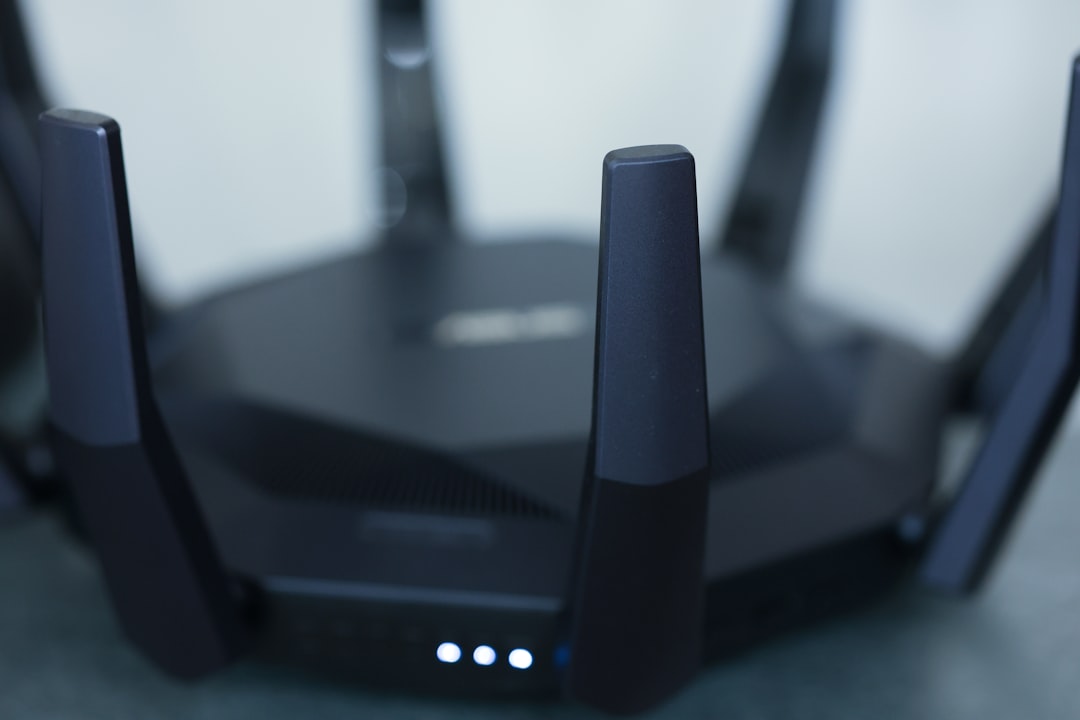
Routers get tired. They are small plastic boxes doing a lot of work. Give yours a nap.
- Unplug your router and modem.
- Wait 30 seconds.
- Plug the modem back in first.
- Wait until it is fully online.
- Plug the router back in.
- Try Twitch again.
This can fix many connection problems. It clears temporary issues. It refreshes your connection to your internet provider.
Disable Hardware Acceleration
Hardware acceleration lets your browser use your graphics card. Usually, this is good. Sometimes, it causes video problems.
In Chrome or Edge, search settings for hardware acceleration. Turn it off. Restart the browser. Test Twitch again.
In Firefox, go to performance settings. Uncheck recommended performance settings. Then disable hardware acceleration.
If the stream starts working, your graphics driver may also need an update.
Check With Your Internet Provider
If nothing works, your internet provider may have a routing issue. This happens. The internet is a giant maze of cables and servers. Sometimes one path gets weird.
Try Twitch on mobile data. If it works there but not on home internet, your home network or provider may be the cause.
You can contact your provider and say: “I am having trouble streaming video from Twitch. Other sites work. Can you check routing or connection issues?”
This sounds more official than “Twitch is broken and I am emotionally wounded.” Both may be true.
Best Fix Order
Use this quick order if you want the fastest path:
- Refresh Twitch.
- Check another stream.
- Restart your browser.
- Clear cache and cookies.
- Disable extensions.
- Try private mode.
- Try another browser.
- Restart router.
- Disable VPN or proxy.
- Change DNS.
- Check antivirus and firewall.
Final Thoughts
Twitch Error 2000 looks scary, but it is usually easy to fix. Most of the time, the problem is cache, extensions, VPN, DNS, or a shaky connection. Start with the simple steps. Then move to the network fixes.
And remember. You are not cursed. Your browser is not haunted. Twitch just lost the video pizza on the way to your screen. With a few quick checks, you can get back to streams, emotes, raids, and chat chaos in no time.

