
Reporting should not feel like homework. Yet many marketers still copy and paste data from Google Analytics into spreadsheets every week. It is slow. It is boring. And it leads to mistakes. The good news? You can automate most of it with a Google Analytics connector. Once set up, your reports update on their own. You just open them and smile.
TLDR: A Google Analytics connector pulls your data automatically into tools like Google Sheets, Looker Studio, or Excel. It saves time, reduces human error, and keeps your reports fresh without manual work. You set it up once, choose your metrics, and let it run on a schedule. It is one of the easiest ways to level up your marketing workflow.
Let’s break it down in a simple and fun way.
What Is a Google Analytics Connector?
A Google Analytics connector is a bridge. On one side is your analytics data. On the other side is your reporting tool. The connector moves data between them automatically.
Think of it like a coffee machine with a timer. You do not wake up and grind beans every morning. You set it up once. It does the job for you.
Popular tools that use connectors include:
- Google Looker Studio
- Google Sheets
- Microsoft Excel
- Business intelligence tools like Power BI
- Third-party dashboard platforms
Most of these tools either have built-in connectors or allow you to install one.

Why Automate Reporting?
Before we jump into how, let’s talk about why.
Manual reporting usually looks like this:
- Log into Google Analytics
- Choose a date range
- Export data
- Clean up the spreadsheet
- Copy into a report template
- Repeat every week
Now imagine doing that for:
- Multiple clients
- Several websites
- Different traffic sources
That is a lot of clicking.
Automation gives you:
- Time back
- Fewer mistakes
- Real-time updates
- Consistent formatting
- Happier clients and managers
Instead of building reports, you analyze them. That is where the real value is.
Step 1: Pick Your Reporting Tool
First, decide where you want your data to live.
If you want something visual and easy to share, try Looker Studio. It connects directly to Google Analytics and is free.
If you love spreadsheets, go with Google Sheets or Excel.
Ask yourself:
- Who will read this report?
- Do they prefer dashboards or spreadsheets?
- Do I need advanced charts?
- Do I need to combine multiple data sources?
Make the tool work for you. Not the other way around.
Step 2: Connect to Google Analytics
Now the fun part. Connecting.
Let’s use Looker Studio as an example.
- Open Looker Studio.
- Click on Create.
- Choose Data Source.
- Select Google Analytics.
- Log in and give permission.
- Pick your property and account.
Done. The connector is active.
If you are using Google Sheets, you may need an add-on or built-in data connector. Many tools guide you step by step. It usually takes less than ten minutes.
You do this once. Not every week.
Step 3: Choose the Right Metrics
This is important. Do not just pull everything.
Too much data is still a problem.
Start with core metrics like:
- Users
- Sessions
- Engagement rate
- Average session duration
- Conversions
- Conversion rate
Then add traffic breakdowns:
- Organic search
- Paid ads
- Social media
- Email campaigns
- Referral traffic
Match the metrics to your goal. If your boss cares about leads, show conversions. If your client cares about traffic growth, focus on sessions and users.
Keep it simple. Clean reports are powerful.
Step 4: Build Your Template Once
Now design your report layout.
Think in sections:
- Overview summary
- Traffic sources
- Top pages
- Conversions
- Trends over time
Use clear headings. Big numbers for key metrics. Charts for trends.
You can add:
- Scorecards
- Bar charts
- Line graphs
- Pie charts
- Tables
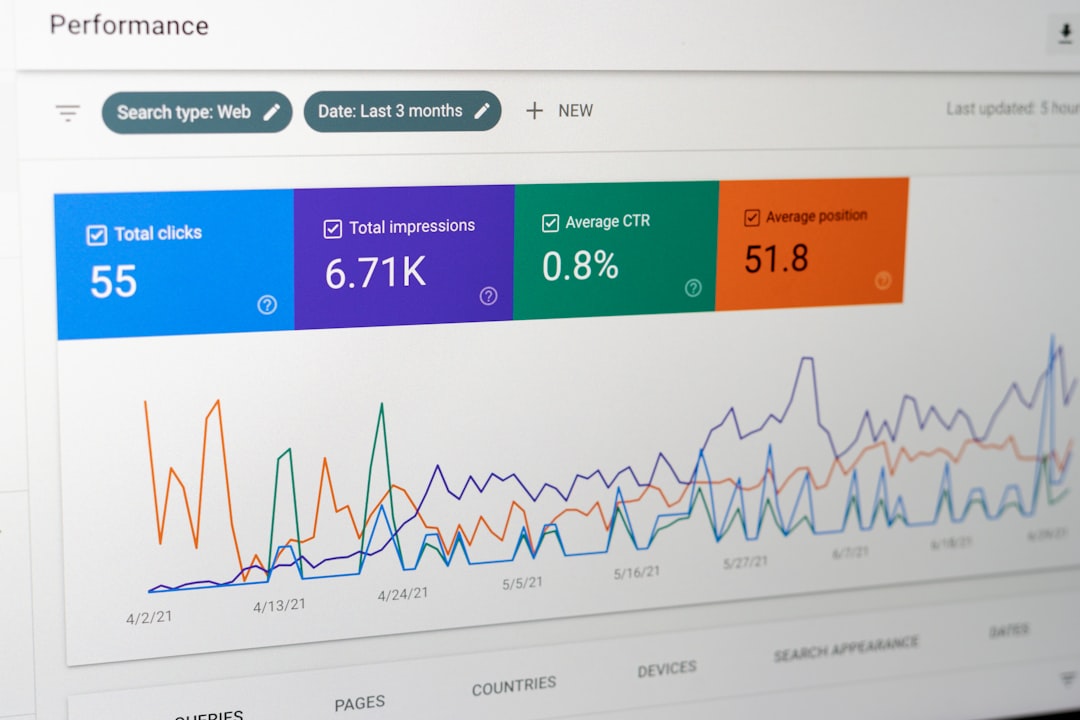
Take your time here. This is the only part that requires creativity. But once it is built, it works forever.
If you manage multiple clients, duplicate the template. Then just switch the data source.
Magic.
Step 5: Set Automatic Date Ranges and Refresh
This is where automation really shines.
Most tools allow you to:
- Set dynamic date ranges like “Last 30 days”
- Compare to previous period
- Compare year over year
That means your report updates automatically every day.
No need to change the dates manually.
You can also schedule email delivery.
For example:
- Send monthly report on the 1st
- Email weekly summary every Monday
- Send PDF copies to stakeholders
Your report sends itself while you sleep.
Step 6: Combine With Other Data Sources
Here is where things get exciting.
A good connector can combine Google Analytics with:
- Google Ads
- Search Console
- Facebook ads
- Email marketing platforms
- CRM systems
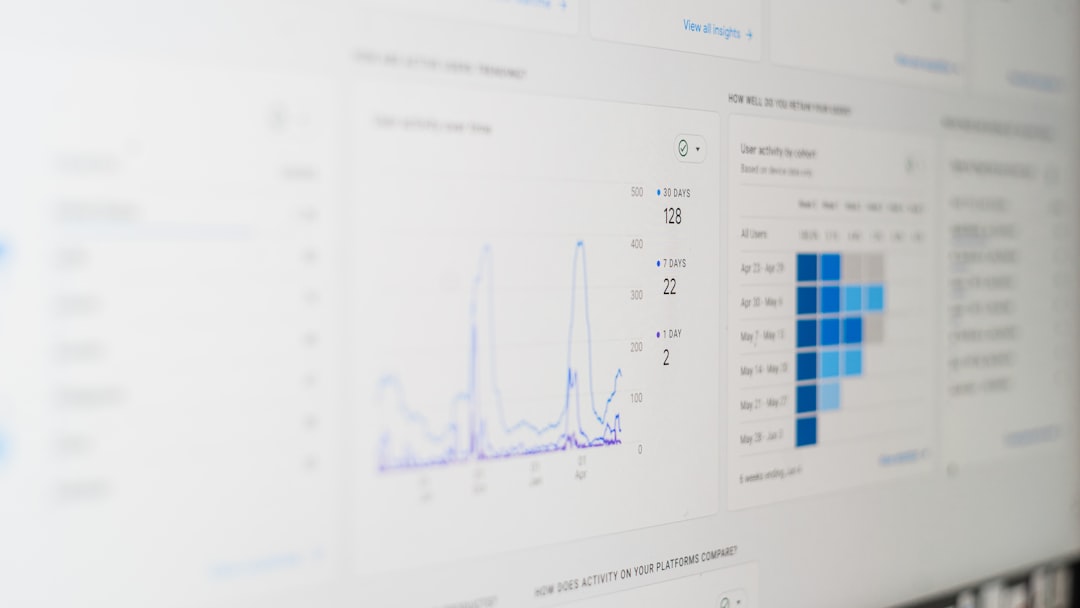
Instead of switching between platforms, you see everything in one place.
Want to see how paid ads impact conversions on your site? Combine the data. Want to track SEO traffic next to revenue? Blend the sources.
This gives context. Context helps you make better decisions.
Best Practices for Smooth Automation
Automation is powerful. But only if set up properly.
Here are some simple rules:
- Name your reports clearly
- Document your metrics
- Use consistent date ranges
- Avoid too many charts
- Test your report before sharing
Also, check your connectors occasionally. Sometimes permissions expire. Sometimes accounts change.
A quick monthly check keeps everything healthy.
Common Mistakes to Avoid
Let’s save you some headaches.
Mistake 1: Pulling too much data
Big reports do not mean better insights.
Mistake 2: Ignoring data accuracy
Make sure you are using the right property and view.
Mistake 3: Forgetting to explain numbers
Reports need context. Add short notes or comments.
Mistake 4: Not aligning with goals
Vanity metrics impress nobody.
Always ask, “What decision will this report support?”
How Much Time Can You Save?
Let’s do simple math.
If manual reporting takes:
- 1 hour per week
That is:
- 4 hours per month
- 48 hours per year
That is more than a full work week.
Now imagine you manage five clients.
You could save over 200 hours per year.
That is time you can spend on strategy, testing, and growth.
Is It Hard to Set Up?
Not at all.
If you can:
- Click buttons
- Select metrics
- Drag and drop charts
You can automate reporting.
The hardest part is starting. After the first setup, you will wonder why you ever did it manually.
Final Thoughts
Automating reporting with a Google Analytics connector is not just about saving time. It is about working smarter.
You get:
- Cleaner workflows
- Real-time insights
- Professional dashboards
- Less stress
Set it up once. Let it run quietly in the background.
No more copying. No more pasting. No more last-minute report panic.
Just open your dashboard. Watch the numbers update. And focus on what really matters.
Data should work for you. Not the other way around.

