
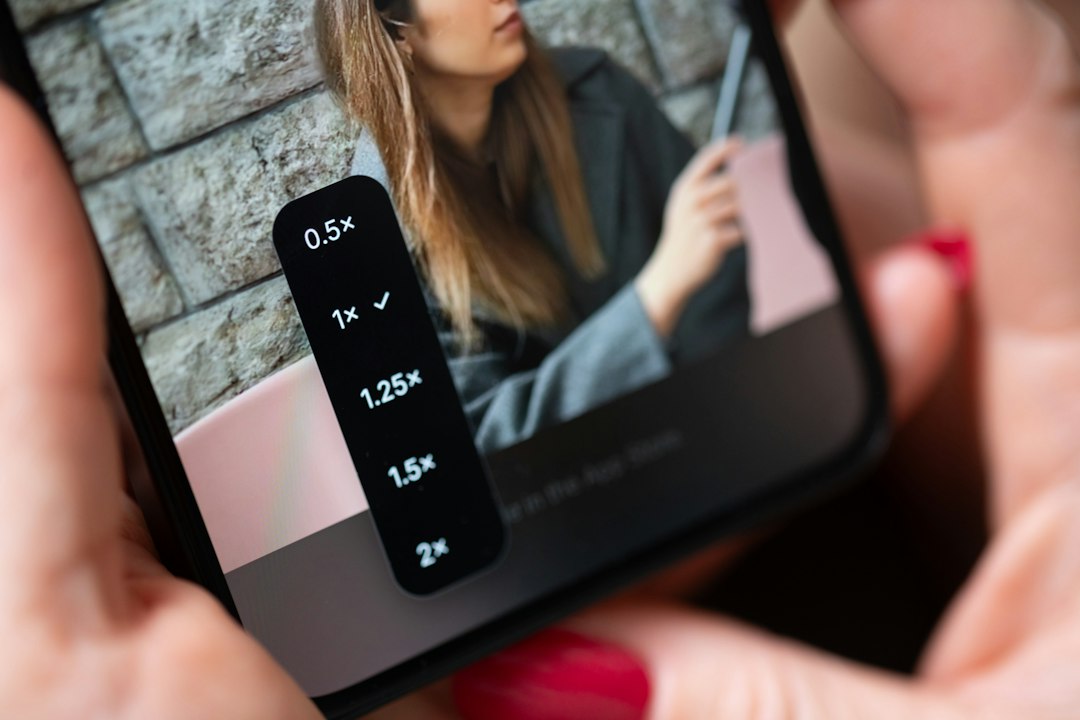
A high-fidelity wireframe is a detailed screen blueprint that looks and behaves close to the final product, but is still flexible enough to change before development starts. It shows layout, content, spacing, visual hierarchy, interactions, and often real interface copy. When teams compare Figma vs Uizard for detailed prototypes, the choice usually comes down to control versus speed.
TLDR: A high-fidelity wireframe is useful when rough sketches are no longer enough and stakeholders need to see how a product will actually feel. Figma is better for precise, scalable UI design systems and advanced collaboration, while Uizard is stronger for quick AI-assisted mockups and early prototype generation. For example, a startup testing a booking app might create 12 polished screens in Uizard in under an hour, then rebuild the final design in Figma for developer handoff. In a small team, that can cut early concept work by 40% to 60%.
What makes a wireframe “high-fidelity”?
A basic wireframe is often gray boxes, placeholder text, and simple structure. A high-fidelity wireframe goes much further. It may include real images, brand colors, button states, icons, content, spacing rules, and clickable flows.
Think of it as the point where a product idea stops feeling abstract. The team can see what the user sees. They can click through a sign-up form, open a menu, test a checkout screen, or review an account dashboard before a developer writes production code.
High-fidelity wireframes often include:
- Realistic layouts with accurate spacing and alignment.
- Actual text instead of “Lorem ipsum.”
- Visual styling such as colors, fonts, shadows, and icons.
- Interactive states like hover, selected, disabled, and error states.
- Clickable flows for user testing and stakeholder review.
- Responsive variants for desktop, tablet, and mobile screens.
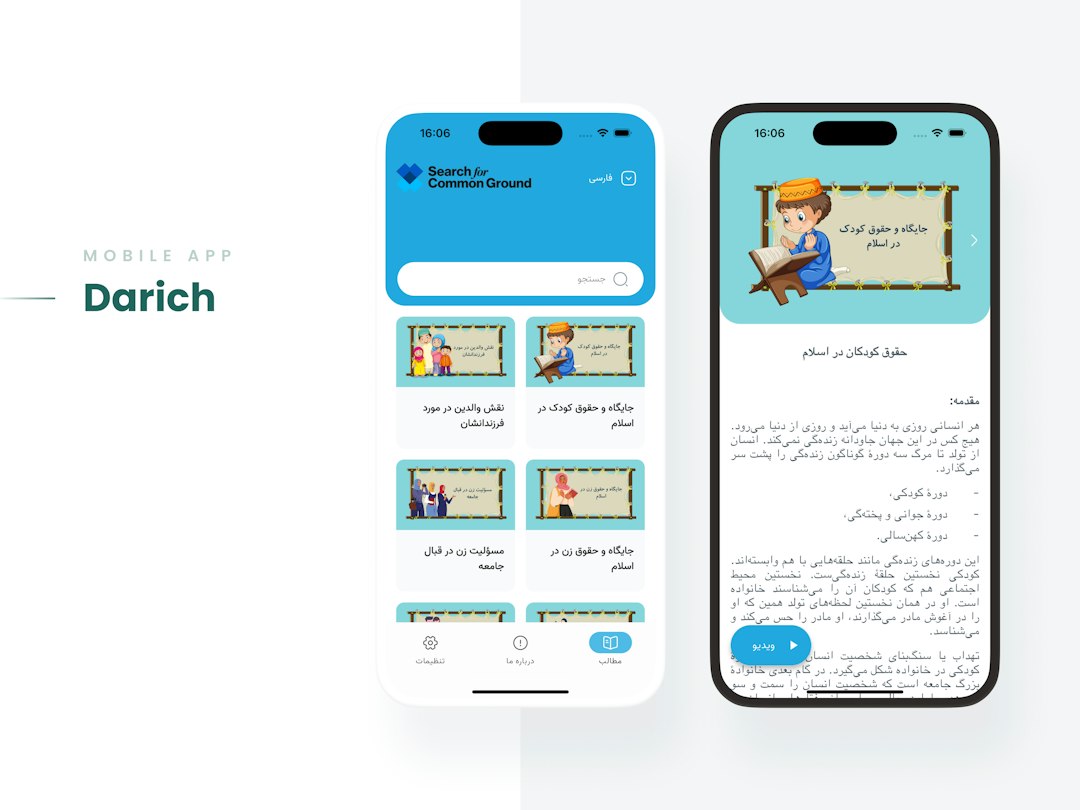
High-fidelity wireframe vs prototype
The terms often get mixed up. That is fair, because they overlap.
A high-fidelity wireframe focuses on detailed structure and visual design. A prototype focuses on interaction. When a detailed wireframe becomes clickable, it starts acting like a prototype.
For example, a high-fidelity wireframe of a food delivery app might show restaurant cards, filters, a cart, and payment screens. A prototype lets users tap a restaurant, add sushi to the cart, apply a promo code, and reach the order confirmation page.
The value is simple: people react better to something they can see and use. It drives me crazy when teams ask users to review vague gray boxes and then act shocked when feedback is vague too.
Why detailed prototypes matter
Detailed prototypes reduce guesswork. Product managers can spot missing steps. Designers can test visual hierarchy. Developers can estimate complexity. Clients can approve a direction without needing to “imagine” the final product.
They also expose problems early. A checkout flow with six steps may look acceptable in a document. Once clicked through, it can feel painfully slow. A dashboard widget may seem useful until users ignore it during testing.
High-fidelity prototypes are especially useful for:
- Investor demos where polish can shape confidence.
- User testing before engineering time is spent.
- Client approvals on visual direction and page flow.
- Developer handoff with spacing, assets, and behavior notes.
- Internal alignment between design, product, sales, and support teams.
Figma for high-fidelity wireframes
Figma is the stronger tool when precision matters. It is built for serious interface design. Designers can create components, variants, design systems, auto layout rules, shared styles, and advanced prototypes.
If your product has many screens, repeated UI patterns, and a growing design team, Figma makes sense. Change a button component once, and that update can apply across the file. Adjust a color style, and every linked object can follow. That saves real hours as projects grow.
Figma is also excellent for collaboration. Multiple people can work in the same file. Stakeholders can comment on specific elements. Developers can inspect measurements, colors, and assets.
Where Figma shines:
- Complex web apps and mobile apps.
- Design systems and reusable components.
- Pixel-level control over interface details.
- Team collaboration and version history.
- Developer handoff with inspect tools.
The catch is that Figma has a learning curve. Auto layout is powerful, but it can punish sloppy setup. Expect to waste time on nested frames if the file was built in a rush. A simple card adjustment can take 20 seconds, or two minutes, depending on whether the structure is clean.
Uizard for high-fidelity wireframes
Uizard is built for speed. It uses AI-assisted features to turn prompts, screenshots, and rough sketches into interface mockups. That makes it useful for founders, product managers, marketers, and non-designers who need something presentable fast.
If you want to test a concept today, not next week, Uizard can help. You can describe an app idea, generate screens, edit layouts, and connect a basic flow. It will not always produce refined design work, but it gets the first version moving.

Where Uizard works well:
- Early product concepts and quick mockups.
- Pitch decks and founder demos.
- Non-design teams that need visual output.
- Sketch-to-screen experiments.
- Simple clickable prototypes for feedback.
Honestly, it feels like Uizard is best when you accept that the first draft may be messy. Some generated layouts need cleanup. Spacing can feel off. Icons may not match the tone. Still, if the alternative is a blank canvas, that mess is often useful.
Figma vs Uizard: key differences
The better choice depends on the stage of the project.
| Category | Figma | Uizard |
|---|---|---|
| Best for | Detailed UI design and design systems | Fast AI-generated concepts |
| Learning curve | Medium to high | Low |
| Design control | Very strong | Moderate |
| Prototype quality | Advanced | Good for simple flows |
| AI assistance | Available through plugins and newer features | Central to the product |
| Developer handoff | Strong | Basic to moderate |
Use Uizard when you need to move from idea to screen quickly. Use Figma when the product needs polish, consistency, and production-ready documentation.
A practical workflow: use both
Many teams do not need to pick one forever. A smart workflow can use both tools at different stages.
- Start in Uizard to generate rough high-fidelity concepts from a prompt or sketch.
- Test the flow with teammates, users, or clients.
- Identify weak spots such as confusing labels, missing screens, or poor hierarchy.
- Move to Figma for refined UI, components, and responsive layouts.
- Prepare handoff with specs, assets, and comments for developers.
For a small SaaS team, this hybrid approach can be very efficient. Imagine a product manager creating a billing settings flow in Uizard on Monday morning. By lunch, the team reviews it. By Tuesday, a designer rebuilds the approved direction in Figma with proper components. By Friday, developers have a clear prototype and fewer open questions.

When should you create a high-fidelity wireframe?
Create one when the team needs clarity before committing to development. Do not build a polished prototype for every tiny idea. That can slow the team down. Use low-fidelity sketches for early thinking, then switch to high-fidelity work once the flow feels stable.
A high-fidelity wireframe is worth creating when:
- The product flow affects revenue, sign-ups, or retention.
- Stakeholders need to approve visual direction.
- Users must test realistic screens.
- Developers need accurate UI references.
- The design will become part of a larger system.
Final recommendation
Choose Figma if design quality, consistency, and handoff matter most. It is the better long-term workspace for professional UI design. Choose Uizard if speed, AI help, and fast concept testing matter most. It is ideal for getting ideas out of someone’s head and onto the screen.
The best high-fidelity wireframe is not the prettiest one. It is the one that helps the team make a better decision sooner. If Figma gives you control and Uizard gives you speed, the real skill is knowing when to use each.

