
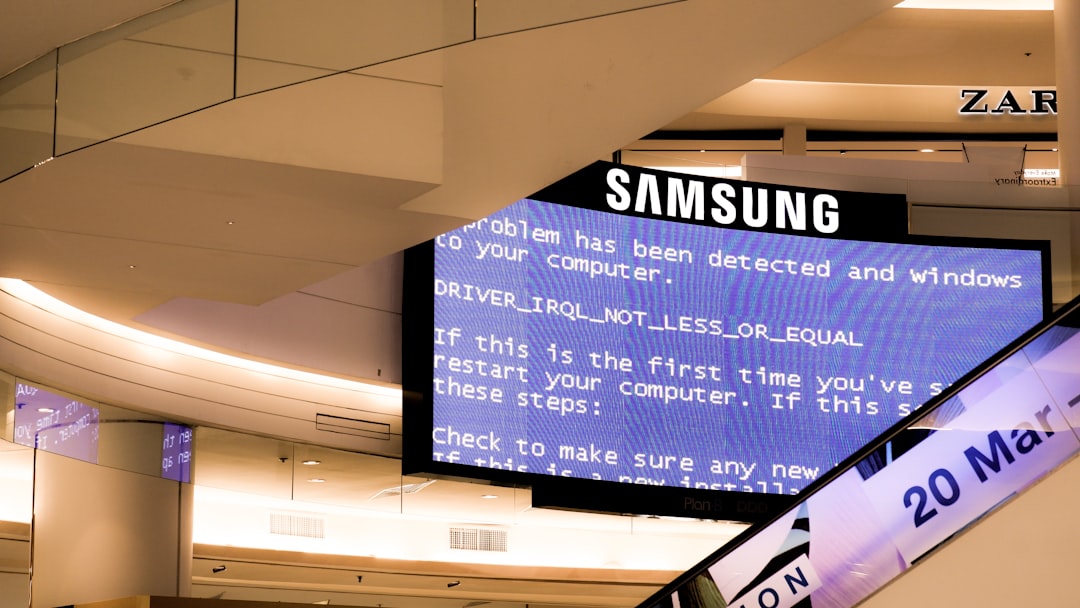
When a Windows computer refuses to boot properly and displays the message “Windows Failed Fast Startup” with error code 0xc00000d4, it can be alarming. This issue is commonly linked to problems with the Fast Startup feature, boot configuration data, corrupted system files, or disk errors. Fortunately, in most cases, the problem can be resolved with a series of structured troubleshooting steps that restore normal startup behavior.
TL;DR: The “Windows Failed Fast Startup” error 0xc00000d4 is usually caused by corrupted boot files, Fast Startup conflicts, or disk problems. Disabling Fast Startup, repairing boot records, running system scans, or checking the drive for errors often fixes the issue. In more severe cases, rebuilding the BCD or performing System Restore may be required. Following the steps below systematically will resolve the problem for most users.
Understanding Error 0xc00000d4
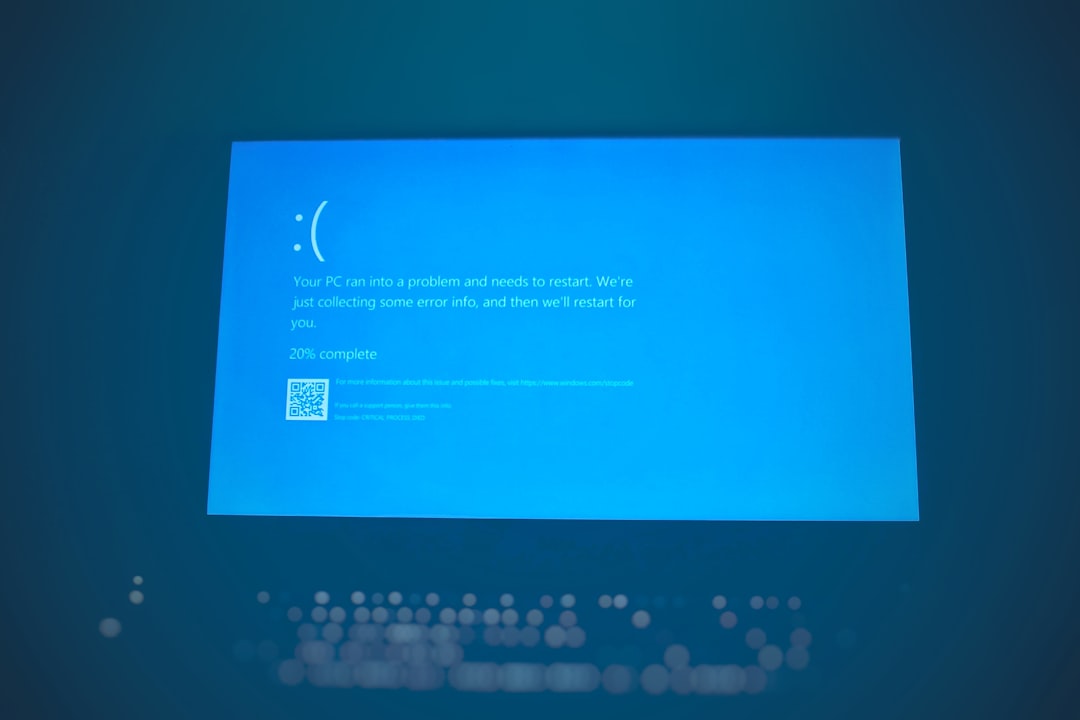
Error 0xc00000d4 typically appears during the boot process and is related to the Fast Startup feature in Windows. Fast Startup is designed to reduce boot time by combining elements of hibernation and shutdown. However, if system files become corrupted or if there is a hardware or disk inconsistency, Windows may fail to load properly.
Common causes include:
- Corrupted Boot Configuration Data (BCD)
- Damaged system files
- Disk errors or failing storage devices
- Incomplete Windows updates
- Conflicts caused by Fast Startup itself
Understanding the root cause helps determine which solution will work best.
Method 1: Disable Fast Startup
Since this error is directly linked to the Fast Startup feature, disabling it is often the fastest and most effective solution.
Steps to Disable Fast Startup
- Boot into Windows Recovery Environment (WinRE).
- Select Troubleshoot > Advanced Options > Command Prompt.
- Type the following command:
powercfg /h off
This command disables hibernation, which also disables Fast Startup.
Alternatively, once access to Windows is restored:
- Open Control Panel.
- Go to Power Options.
- Select Choose what the power buttons do.
- Click Change settings that are currently unavailable.
- Uncheck Turn on fast startup.
Why this works: Fast Startup relies on a partial hibernation file. If this file is corrupted, startup will fail. Disabling it forces a full, clean boot.
Method 2: Repair Boot Configuration Data (BCD)
A damaged Boot Configuration Data file is one of the most frequent causes of error 0xc00000d4.
Image not found in postmetaSteps to Rebuild BCD
- Boot into Windows Recovery Environment.
- Open Command Prompt.
- Run the following commands one by one:
bootrec /fixmbr
bootrec /fixboot
bootrec /scanos
bootrec /rebuildbcd
Restart the system after running these commands.
What these commands do:
- /fixmbr repairs the Master Boot Record.
- /fixboot writes a new boot sector.
- /scanos detects installed Windows systems.
- /rebuildbcd rebuilds the boot configuration data.
This method resolves startup errors caused by corrupted boot files.
Method 3: Run System File Checker (SFC) and DISM
Corrupt system files can also prevent Fast Startup from functioning correctly.
Run SFC Scan
From Command Prompt:
sfc /scannow
If Windows is unable to boot normally, use:
sfc /scannow /offbootdir=C:\ /offwindir=C:\Windows
Run DISM Tool
DISM /Online /Cleanup-Image /RestoreHealth
Important: DISM may require an internet connection to download repair files.
These tools scan for corruption and automatically replace damaged system files with healthy copies.
Method 4: Check Disk for Errors
Hard drive issues are another major cause of this error.
Run CHKDSK
chkdsk C: /f /r /x
Parameter explanation:
- /f fixes errors
- /r locates bad sectors
- /x forces dismount
If bad sectors are detected frequently, the drive itself may be failing and should be replaced.
Method 5: Perform Startup Repair
Windows includes an automated repair utility that can fix many boot issues.
How to Use Startup Repair
- Enter Windows Recovery Environment.
- Select Troubleshoot.
- Choose Advanced Options.
- Click Startup Repair.
The tool scans system components and automatically repairs problems preventing startup.
Method 6: Use System Restore
If the error appeared after a recent update or driver installation, restoring Windows to a previous working state can resolve it.
Steps
- Go to Advanced Options in WinRE.
- Select System Restore.
- Choose a restore point created before the issue began.
This method does not affect personal files but may remove recent apps or drivers.
Comparison of Repair Methods
| Method | Best For | Difficulty | Risk Level |
|---|---|---|---|
| Disable Fast Startup | Fast boot corruption | Easy | Low |
| Repair BCD | Bootloader damage | Moderate | Low |
| SFC & DISM | Corrupt system files | Moderate | Low |
| CHKDSK | Disk errors | Moderate | Medium (if drive failing) |
| System Restore | Recent update issues | Easy | Low |
| Startup Repair | General boot issues | Easy | Low |
Preventing Future Fast Startup Errors
Preventive maintenance significantly reduces the risk of encountering error 0xc00000d4 again.
- Keep Windows updated regularly.
- Avoid forced shutdowns and sudden power interruptions.
- Run periodic disk checks.
- Maintain sufficient free disk space.
- Consider disabling Fast Startup permanently if issues persist.
While Fast Startup improves boot speed, some systems—particularly those with older hardware—operate more reliably without it.
Frequently Asked Questions (FAQ)
1. What exactly is error code 0xc00000d4?
It is a Windows boot error typically related to Fast Startup, corrupted boot configuration data, or damaged system files preventing the operating system from starting correctly.
2. Is it safe to disable Fast Startup permanently?
Yes. Disabling Fast Startup does not harm the system. The only downside is slightly longer boot times, but it may improve overall stability.
3. Can failing hardware cause this error?
Yes. A failing hard drive or SSD can trigger boot errors, including 0xc00000d4. Running CHKDSK and checking SMART data can help diagnose hardware failure.
4. Do I need installation media to fix this problem?
Not always. Windows Recovery Environment is often accessible without external media. However, a bootable USB drive can be helpful if recovery options are inaccessible.
5. Will reinstalling Windows fix the issue?
Yes, a clean installation will resolve the error if it is software-related. However, it should be considered a last resort after attempting repair methods.
6. Why did this error appear after a Windows update?
Updates sometimes modify boot files or power settings. If the update process was interrupted or corrupted, it may affect Fast Startup configuration.
7. How long does Startup Repair take?
It typically takes 10–30 minutes, depending on system speed and the extent of corruption.
8. Can SSDs cause this error?
SSDs themselves are not the cause, but firmware issues or file system corruption on SSDs can trigger similar boot errors.
By systematically applying the solutions detailed above—starting with disabling Fast Startup and progressing to boot repair and disk checks—most users can resolve the “Windows Failed Fast Startup” error 0xc00000d4 efficiently. Consistent maintenance and cautious update management further reduce the likelihood of encountering this problem again.

