
Getting a TPM-WMI Error 1801 on Windows can feel scary. It pops up out of nowhere. It sounds technical. And suddenly you’re worried something is wrong with your PC. Relax. This error usually looks worse than it is. With a few simple steps, you can fix it and move on with your life.
TL;DR: TPM-WMI Error 1801 is usually caused by a glitch in the TPM chip, BIOS settings, or corrupted system files. Restarting the TPM, updating BIOS, or repairing Windows system files often fixes it. In some cases, resetting TPM or enabling it in BIOS solves the problem. Follow the steps below one by one and you’ll likely fix it quickly.
First, What Is TPM?
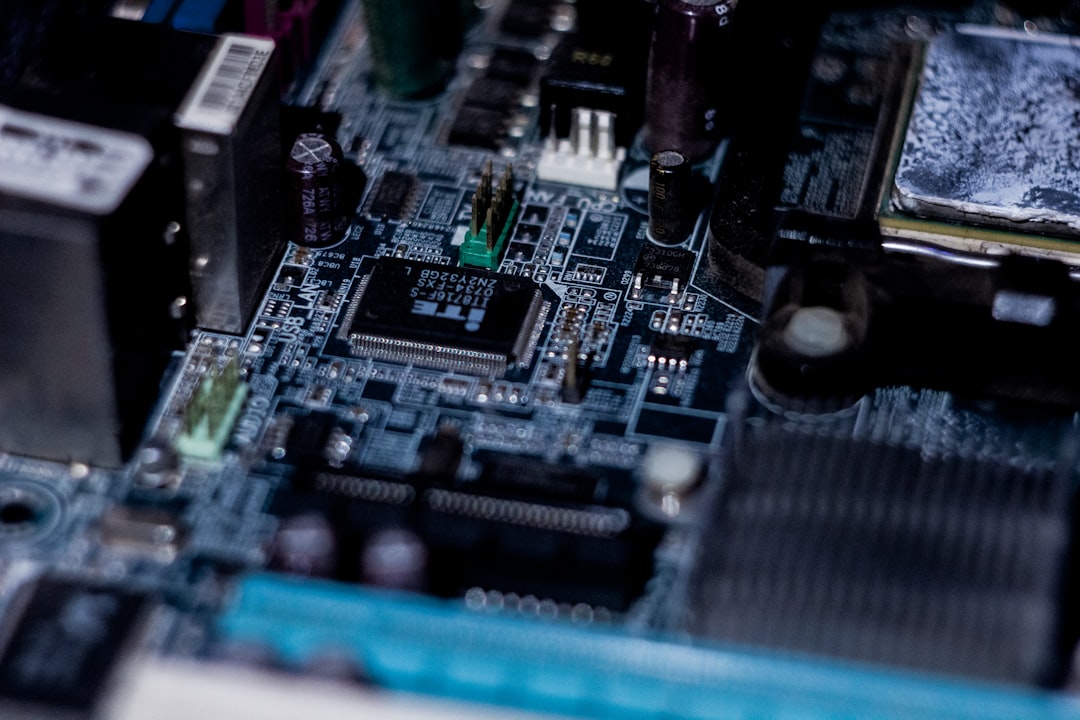
TPM stands for Trusted Platform Module. It’s a small chip on your motherboard. Think of it as a security guard for your computer.
It helps with:
- BitLocker encryption
- Windows Hello
- Secure boot
- Storing security keys
WMI stands for Windows Management Instrumentation. It helps Windows communicate with hardware, including TPM.
So when you see TPM-WMI Error 1801, it usually means Windows tried talking to the TPM chip… and something failed.
Why Does TPM-WMI Error 1801 Happen?
This error can show up for several reasons:
- TPM is disabled in BIOS
- Corrupted TPM settings
- Outdated BIOS firmware
- Driver problems
- Windows system file corruption
- After a Windows update
Sometimes it happens randomly after waking from sleep. Sometimes after enabling BitLocker. The good news? Most causes are fixable.
Before You Start: A Quick Safety Tip
If you use BitLocker encryption, pause it before making TPM changes. Resetting TPM can remove stored keys.
To pause BitLocker:
- Open Control Panel
- Click BitLocker Drive Encryption
- Select Pause protection
Now you’re safe to troubleshoot.
Fix 1: Restart Your PC (Yes, Really)
It sounds basic. But it works surprisingly often.
A simple restart can:
- Reinitialize TPM services
- Clear temporary glitches
- Reset WMI connections
If the error comes back after reboot, move to the next fix.
Fix 2: Check If TPM Is Enabled in BIOS
Sometimes TPM gets disabled accidentally. Or after a BIOS reset.
Here’s how to check:
- Restart your PC
- Press F2, DEL, F10, or ESC during boot (varies by manufacturer)
- Enter BIOS/UEFI settings
- Look for Security or Advanced tab
- Find TPM, Intel PTT, or AMD fTPM
- Make sure it’s Enabled
Save changes and exit.
If it was disabled, this may instantly solve the error.

Fix 3: Clear or Reset TPM
If TPM data is corrupted, clearing it helps.
Important: Make sure BitLocker is paused first.
To clear TPM inside Windows:
- Press Win + R
- Type tpm.msc
- Press Enter
- Click Clear TPM
- Restart your PC
The system will reset TPM and create fresh security keys.
This often fixes Error 1801 caused by communication errors.
Fix 4: Update BIOS Firmware
An outdated BIOS can cause TPM bugs. Especially after Windows 11 upgrades.
To update BIOS:
- Check your motherboard model
- Go to the manufacturer’s website
- Download the latest BIOS version
- Follow their update instructions carefully
Warning: Do not turn off your PC during a BIOS update.
This step fixes deeper compatibility issues between Windows and TPM.
Fix 5: Repair Windows System Files
Corrupt Windows files can break WMI and TPM communication.
Let’s scan and repair them.
Open Command Prompt as Administrator and run:
sfc /scannow
Wait for it to complete.
Then run:
DISM /Online /Cleanup-Image /RestoreHealth
These tools repair damaged Windows system files. Many TPM-WMI issues disappear after this step.

Fix 6: Restart WMI Services
Since this is a WMI-related error, restarting WMI helps sometimes.
Here’s how:
- Press Win + R
- Type services.msc
- Find Windows Management Instrumentation
- Right-click and choose Restart
If it’s disabled, set it to Automatic.
Reboot the PC after restarting the service.
Fix 7: Update TPM Drivers
Old drivers can create communication errors.
To update TPM drivers:
- Right-click Start
- Click Device Manager
- Expand Security Devices
- Right-click Trusted Platform Module
- Select Update driver
Choose Search automatically for drivers.
You can also check your PC manufacturer’s website for the latest TPM driver.
Quick Comparison of Fix Methods
| Fix Method | Difficulty | Risk Level | Success Rate |
|---|---|---|---|
| Restart PC | Very Easy | None | Low to Medium |
| Enable TPM in BIOS | Easy | Low | High if disabled |
| Clear TPM | Medium | Medium if BitLocker active | High |
| Update BIOS | Advanced | Higher | Very High for firmware issues |
| Repair Windows files | Easy | None | Medium to High |
| Restart WMI | Easy | None | Medium |
What If Nothing Works?
If you still see TPM-WMI Error 1801:
- Check for pending Windows updates
- Perform a Windows in-place upgrade repair
- Reset Windows (last resort)
An in-place repair keeps your files but reinstalls Windows system components.
Most users won’t need this. Usually the problem is BIOS or TPM related.
How to Prevent TPM Errors in the Future
Want to avoid seeing this again? Follow these tips:
- Keep BIOS updated
- Install Windows updates regularly
- Avoid force shutdowns
- Pause BitLocker before TPM changes
- Use proper shutdown instead of hard resets
TPM is sensitive. Treat it gently.
Is Error 1801 Dangerous?
Usually, no.
It looks serious. It sounds serious. But most of the time it’s just a miscommunication between Windows and the TPM chip.
Your data is typically safe. Your hardware is usually fine. You just need to reconnect the dots.
Final Thoughts
TPM-WMI Error 1801 is frustrating. But it’s fixable. Start simple. Reboot. Check BIOS. Restart WMI. Then move to deeper fixes like clearing TPM or updating BIOS.
Take it step by step. Don’t rush. And always pause BitLocker first.
In most cases, the error disappears within 15–30 minutes of troubleshooting.
And once it’s gone, your system will run securely again. Quiet. Stable. And stress-free.
You’ve got this.

