

Pick Keyboard Maestro if you want the best all-round auto clicker for Mac. Pick MurGaa if you only need simple repeat clicks. macOS also has built-in automation apps, like Shortcuts and Automator, and Apple says Automator can run tasks across many apps [source: Apple].
TLDR: An auto clicker for Mac can save your wrist, your time, and your mood. If you repeat the same click 300 times a day, cutting that to one shortcut can save 10 to 20 minutes. For example, a designer exporting 40 image files could trigger a click sequence instead of babysitting every dialog box. Use Keyboard Maestro for power, MurGaa for simple clicking, and Shortcuts for free basic tasks.
Repetitive clicking is silly. Yet we all do it. Click. Wait. Click again. Miss the tiny button. Start over. It drives me crazy that some apps still make simple jobs feel like feeding coins into an old arcade machine.
An auto clicker fixes that. It can click for you. It can repeat clicks. It can press keys. Some tools can even open apps, move files, fill forms, or trigger custom shortcuts.
What Is an Auto Clicker for Mac?
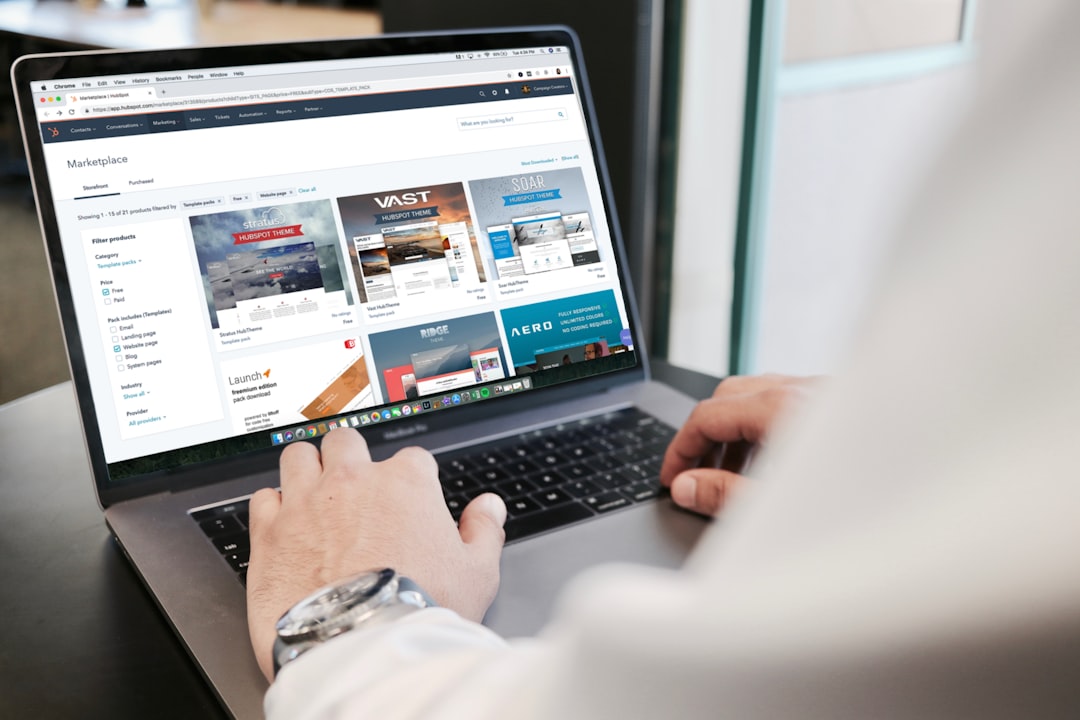
An auto clicker is a small tool that repeats mouse clicks. You choose the click spot. You set the speed. Then the app does the boring part.
Some tools are basic. They only click. Others are mini robot assistants. They can run full workflows, use hotkeys, watch folders, and control apps.
Quick warning: use these tools with care. Some games, websites, and work apps ban automation. Also, most tools need Accessibility permission on your Mac. That is normal, but only grant it to apps you trust.
6 Mac Automation Tools Worth Trying
1. Keyboard Maestro
Best for: serious Mac automation.
Keyboard Maestro is the big brain option. It can click buttons, type text, open files, resize windows, press menu items, and run scripts. You can trigger actions with hotkeys, typed words, timers, app launches, or even Wi-Fi changes.
It is not the prettiest app. Honestly, the first setup can feel like reading a coffee machine manual at 7 a.m. But once it works, it feels magic.
- Great for: office tasks, design exports, app control, daily workflows.
- Nice feature: image recognition for clicking screen items.
- Downside: it takes time to learn.
2. MurGaa Auto Clicker for Mac
Best for: simple repeat clicking.
MurGaa is a classic Mac auto clicker. It lets you set click intervals, click type, and repeat count. You can make it click once per second, ten times per second, or at a slower pace.
This is the “please just click this button for me” tool. No drama. No giant setup.
- Great for: repetitive browser clicks, testing, simple app tasks.
- Nice feature: easy speed control.
- Downside: less useful for complex workflows.
3. BetterTouchTool
Best for: custom shortcuts and gestures.
BetterTouchTool is not just an auto clicker. It is a shortcut playground. You can create actions for your trackpad, mouse, keyboard, Touch Bar, Stream Deck, or window corners.
Want a three-finger tap to open Slack? Done. Want a mouse button to click a fixed spot? Also done. Want window snapping that does not make you sigh? Yes, please.
- Great for: custom gestures, app shortcuts, window control.
- Nice feature: tons of trigger options.
- Downside: menus can feel crowded.
4. Shortcuts for Mac
Best for: free built-in automation.
Shortcuts comes with newer versions of macOS. It is friendlier than Automator. You build actions with blocks. Think of it like snapping toy bricks together.
It can rename files, open apps, send messages, resize images, and control some system actions. It is not the best pure auto clicker. But it is great for repeat tasks that do not need exact mouse clicks.
- Great for: file tasks, simple routines, app actions.
- Nice feature: works with iPhone and iPad too.
- Downside: not every Mac app supports deep actions.
5. Automator
Best for: old-school Mac workflows.
Automator has been around for years. It can batch rename files, convert images, move folders, create services, and run AppleScript.
It feels a bit dusty. Some parts look like they were waiting for a software update since forever. Still, it works well for many boring jobs.
- Great for: batch file work and simple app chains.
- Nice feature: can create Quick Actions in Finder.
- Downside: less friendly than Shortcuts.
6. Hammerspoon
Best for: people who like code.
Hammerspoon lets you control macOS with Lua scripts. That means you can build wild custom actions. Move windows. Watch apps. Create hotkeys. Control the mouse. Trigger alerts.
This is not for everyone. If code scares you, skip it. If code makes you grin, Hammerspoon can become your secret weapon.
- Great for: custom Mac control and developer setups.
- Nice feature: very flexible.
- Downside: you need scripting skills.
How to Pick the Right Tool
Keep it simple. Match the tool to the task.
- Need repeat clicks only? Try MurGaa.
- Need full workflows? Try Keyboard Maestro.
- Want gestures and shortcuts? Try BetterTouchTool.
- Want free tools? Start with Shortcuts or Automator.
- Love scripting? Use Hammerspoon.
Simple Use Cases
- Data entry: paste text, tab forward, click save.
- Design work: export files, confirm dialogs, open folders.
- Testing: click buttons many times to check app behavior.
- Window setup: place apps exactly where you want them.
- Daily startup: open email, calendar, browser, and music with one hotkey.
Final Pick
If you want one answer, choose Keyboard Maestro. It does the most. If you only want clicking, choose MurGaa. If you want to make your Mac feel personal, choose BetterTouchTool.
The best auto clicker is not the one with the most buttons. It is the one that removes the task you hate. Start with one annoying job. Automate that. Then enjoy the tiny joy of not clicking the same thing for the 500th time.

