
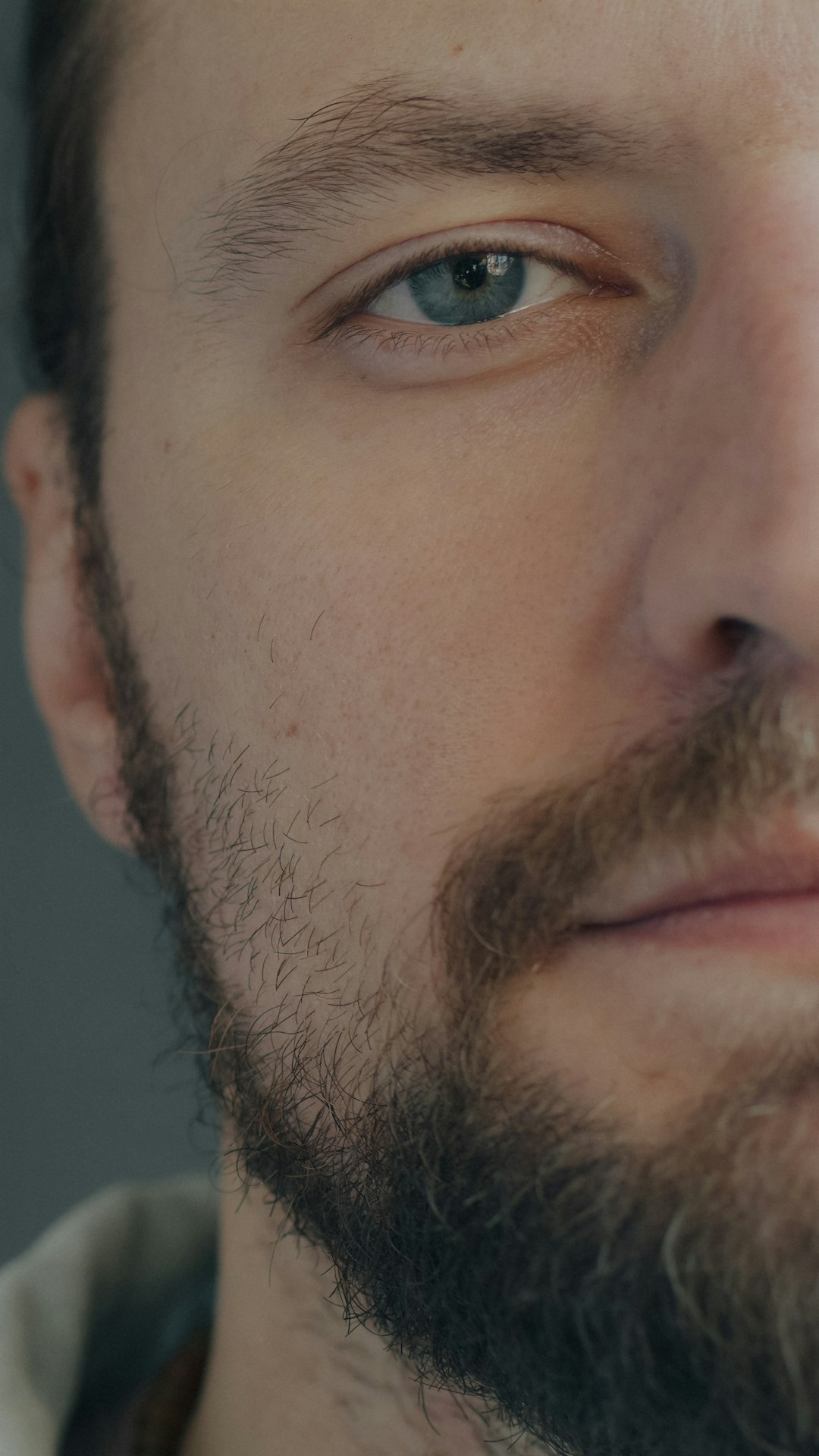
Lightroom is the better all-purpose choice for sharper images, while Capture One is stronger when you need tight focus inspection, layer-based sharpening, and color-faithful studio output. Neither program can rescue a truly missed focus point, but both can improve perceived sharpness when used with restraint. Adobe’s Super Resolution can create a file with twice the linear resolution, or four times the pixel count [source: Adobe].
TLDR: Choose Lightroom if you want fast sharpening, AI masking, noise reduction, and simple batch editing in one familiar workflow. Choose Capture One if you shoot products, portraits, fashion, or tethered sessions where checking focus frame by frame matters. For example, a portrait editor handling 600 wedding images may finish faster in Lightroom, while a studio retoucher reviewing 80 product shots at 100% may catch more soft frames in Capture One’s Focus Mask. A practical rule: use software to refine sharpness, not to repair bad camera technique.
What “sharp” really means in editing
Sharpness is not one thing. It is a mix of focus accuracy, lens quality, shutter speed, sensor resolution, noise level, and contrast. Editing software mostly improves edge contrast. It makes borders between light and dark pixels appear cleaner.
That matters, but there is a limit. If an eye is out of focus and the ear is sharp, no slider will rebuild true eye detail. You can make the file look crisper at small sizes, but a 100% view will still show the miss. Good sharpening starts at capture:
- Use the correct autofocus mode for the subject.
- Keep shutter speed high enough to stop camera shake.
- Focus on the most critical subject detail, usually the nearest eye.
- Avoid pushing ISO so high that noise eats fine texture.
- Check key shots at high magnification before leaving the scene.
Lightroom: fast, practical, and forgiving
Adobe Lightroom is built for speed. Its Detail panel gives you four core sharpening controls: Amount, Radius, Detail, and Masking. This simple set works well for most raw files.
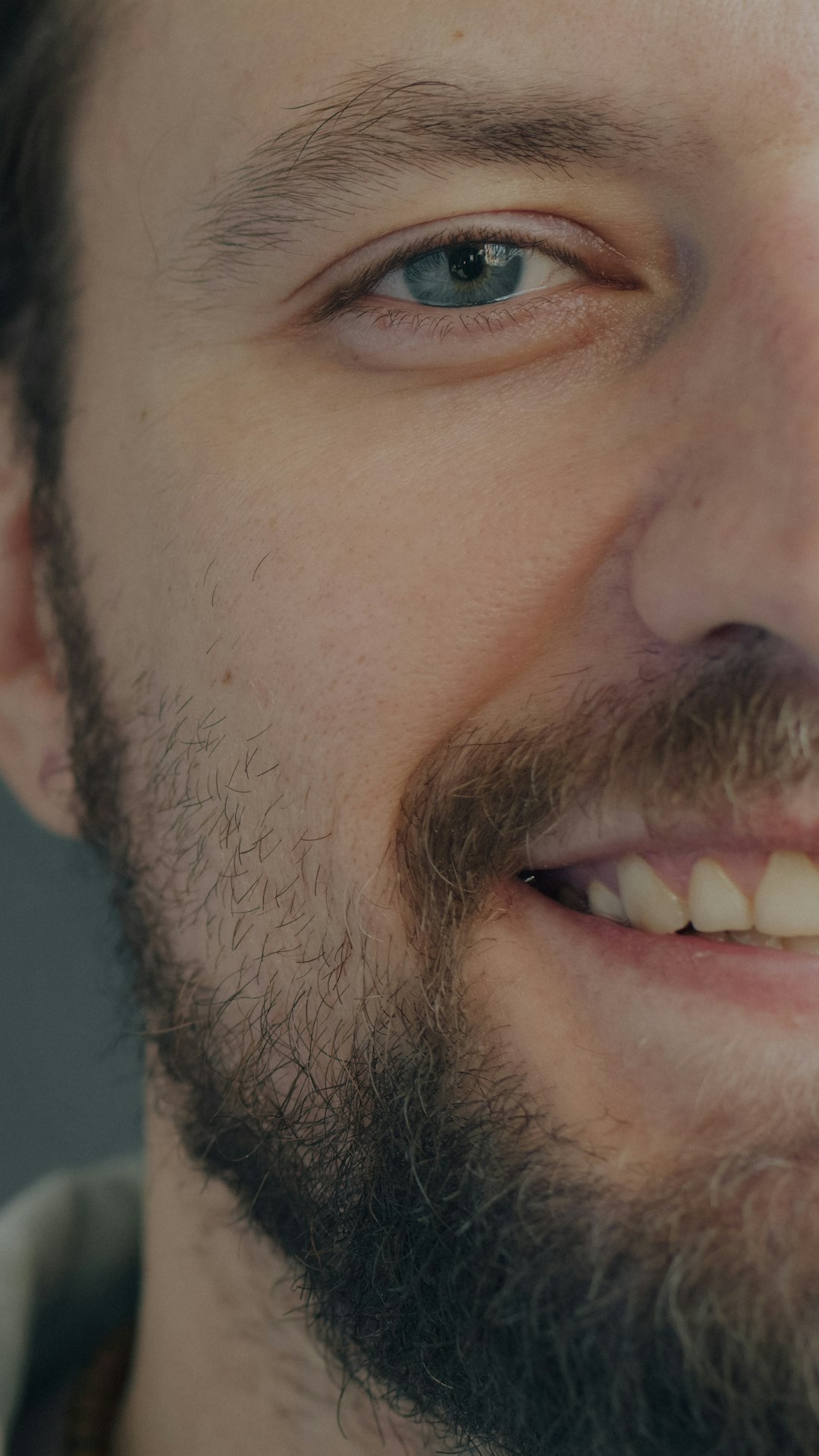
The most useful control is Masking. Hold Alt on Windows or Option on Mac while dragging it. White areas receive sharpening. Black areas are protected. For portraits, this is vital. You can sharpen eyelashes and lips but avoid making skin pores, background grain, and noise look harsh.
Lightroom also pairs sharpening with strong AI masking. You can select a subject, face, eyes, clothing, hair, or background, then apply local clarity, texture, or sharpening. That makes it very efficient for wedding, travel, event, and social content work.
Its Denoise feature is also a strong partner to sharpening. Noise and sharpening fight each other. If you sharpen noisy shadows, the file gets gritty. If you reduce noise too much, texture turns waxy. Lightroom makes that balance easier than it used to be.
It drives me crazy that Lightroom still makes precise focus checking feel slower than it should. You can zoom and compare, yes. But there is no always-on focus overlay like Capture One’s Focus Mask. On a 1,000-image cull, those extra seconds per image add up fast.
Capture One: better inspection and refined control
Capture One feels more serious when judging focus. Its Focus Mask can highlight areas that appear sharp, which helps during culling and tethered shooting. This is especially useful for product, beauty, still life, and controlled portrait sessions.
Capture One’s sharpening tool includes Amount, Radius, Threshold, and Halo Suppression. The last one is valuable. Oversharpening often creates bright outlines around edges. Halo Suppression helps reduce that cheap, crunchy look.
Capture One is also excellent with layers. You can sharpen only the product label, jewelry edge, fabric weave, or subject’s eyes. The masking tools are precise, and the results often feel clean. In studio work, that matters more than raw speed.
The annoyance? Capture One can feel slower to set up. Sessions, catalogs, recipes, and tool tab choices may take longer for new users. Expect to waste time on setup if you are coming from Lightroom. Once the workspace is tuned, it becomes very efficient.
Best Lightroom sharpening settings
There is no universal preset, but these starting points are safe:
- Portraits: Amount 40 to 60, Radius 0.8 to 1.2, Detail 15 to 30, Masking 60 to 85.
- Wildlife: Amount 50 to 80, Radius 0.8 to 1.0, Detail 30 to 50, Masking 40 to 70.
- Architecture: Amount 50 to 70, Radius 0.7 to 1.0, Detail 40 to 60, Masking 20 to 50.
- High ISO files: reduce noise first, then sharpen lightly.
For export, use Lightroom’s Output Sharpening. Pick the final use: screen, matte paper, or glossy paper. A file that looks perfect for a website may look soft in print. A file tuned for print may look too sharp online.
Best Capture One sharpening approach
Capture One rewards a slower, more controlled method. Start by checking focus with Focus Mask and 100% zoom. Then apply basic sharpening globally. After that, use layers for subject-specific detail.
A good working method is:
- Turn on Focus Mask during culling.
- Reject frames where the main focus point missed.
- Apply moderate global sharpening.
- Add a layer for critical detail, such as eyes or product text.
- Use Halo Suppression if edges start to glow.
- Export with sharpening matched to size and medium.
Capture One can produce very crisp files without looking brittle. That is why many studio teams prefer it. The fine control helps when the client will inspect packaging, skin texture, watch dials, or fabric stitching.
Which program gives sharper images?
Lightroom wins for volume. It is the better choice when you need clean results quickly. Its AI masking, Denoise, and export sharpening make it very hard to beat for general photography.
Capture One wins for checking focus and controlled sharpening. If your work depends on exact focus confirmation, local refinement, and tethered review, it has the edge. Its Focus Mask alone can change how you select final images.
For a real-world split, use this guide:
- Wedding and event photographers: Lightroom is usually faster.
- Commercial product photographers: Capture One is usually safer.
- Portrait photographers: either works, but Capture One helps with session review.
- Travel and content creators: Lightroom is simpler and more flexible.
- High-volume studios: use Capture One for tethering and Lightroom only if the team already depends on Adobe tools.
Final recommendation
If you want the most reliable answer, use Lightroom for speed and consistency. Use Capture One when focus inspection and selective sharpening are central to the job. The sharper image usually comes from better capture discipline, not a magic slider.
Set focus carefully. Use enough shutter speed. Cull hard. Then sharpen with restraint. That workflow beats aggressive editing every time.

